Get more from your data with Capsule’s AI Connectors. Currently available for Claude and ChatGPT.

What is MCP?
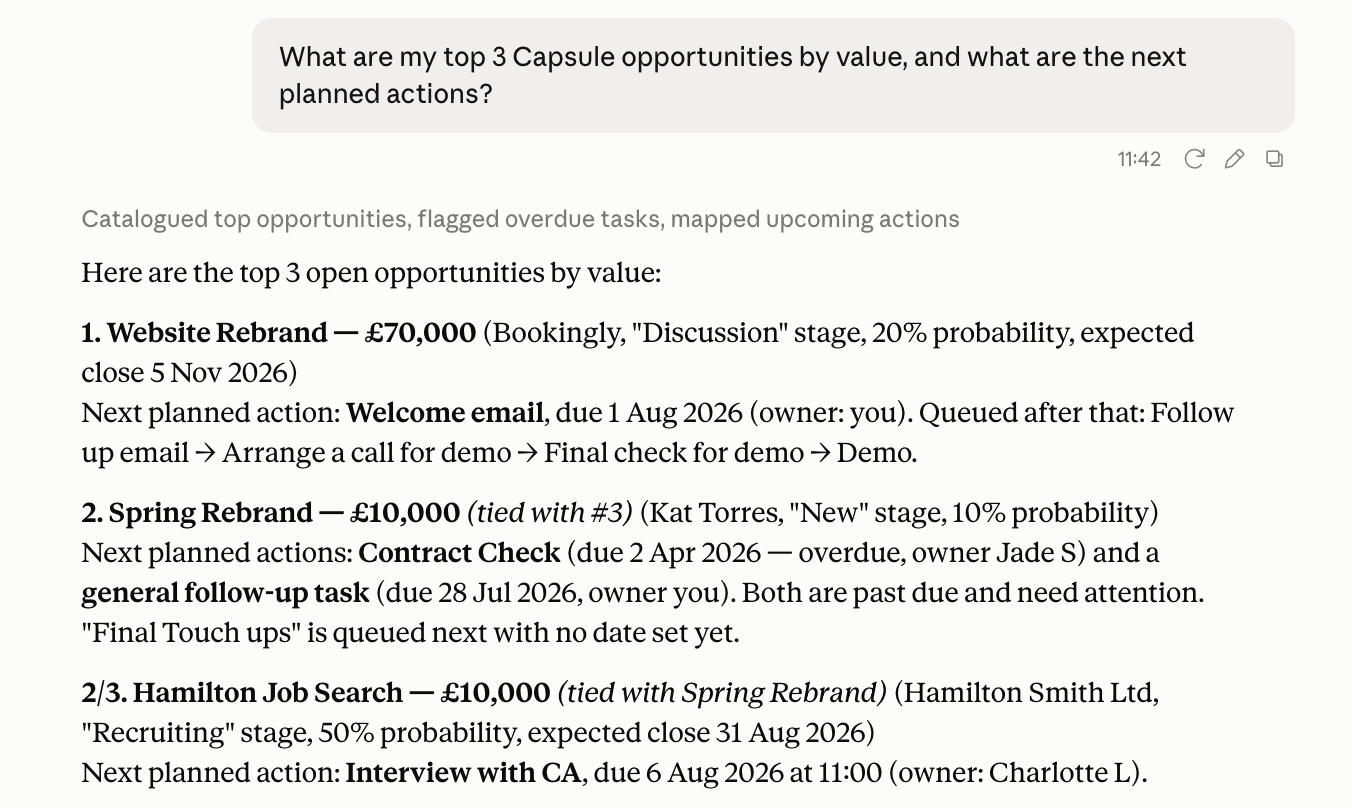
MCP (Model Context Protocol) is an open standard that lets AI assistants like Claude or ChatGPT read and update data in the tools you already use. Capsule runs its own MCP server, which acts as a bridge between the AI tool and your Capsule account. Once connected, you can ask your chosen AI tool to look up Contacts, Opportunities, Projects and more, directly in a conversation, instead of logging in and searching for the information yourself.
Here are a few examples of what you might ask it once connected:
- "How many opportunities were won this quarter, and what was their total value?"
- "Which users have created the most opportunities in the last 30 days?"
- "How many new contacts were added this month, and where did they come from?"
- "Which organizations have had no logged activity in the past 90 days?"
How to connect your AI tool to Capsule
Click on the right tab below to view the set up instructions:
To link Capsule to ChatGPT:
- Go to Account SettingsIntegrations
- Search for and click on ChatGPT
- Choose the Install Plugin button

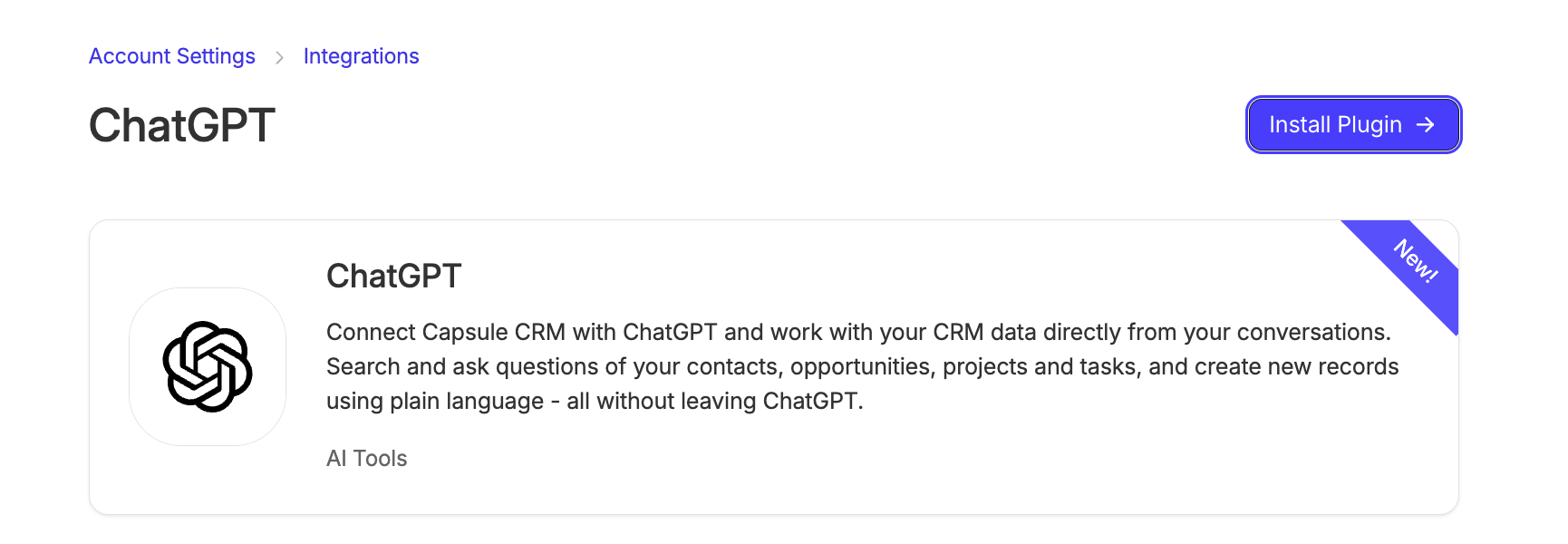
4. You will be redirected to the ChatGPT landing page for Capsule. Click Install plugin
5. Choose Sign in with Capsule CRM

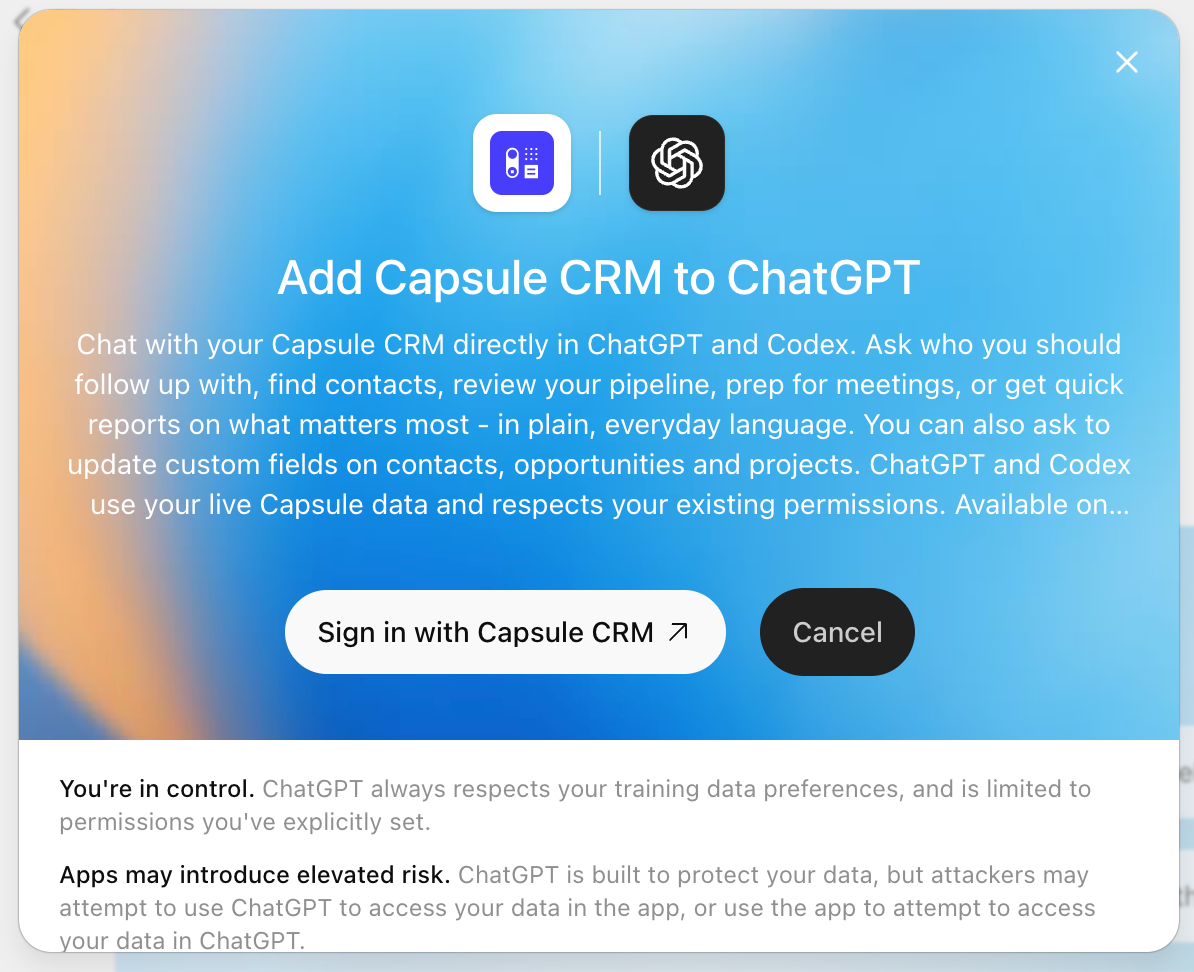
6. Enter your Capsule subdomain in the box, and choose Continue
7. Finally, click Allow to confirm permission for ChatGPT to access your Capsule account.
The plugin is now set up and ready to use. Begin a new chat and start learning more about your data right away.
What can AI do with Capsule?
Your AI tool connects to Capsule using a fixed set of tools, each covering a specific area of your account.
Contacts, Opportunities & Projects
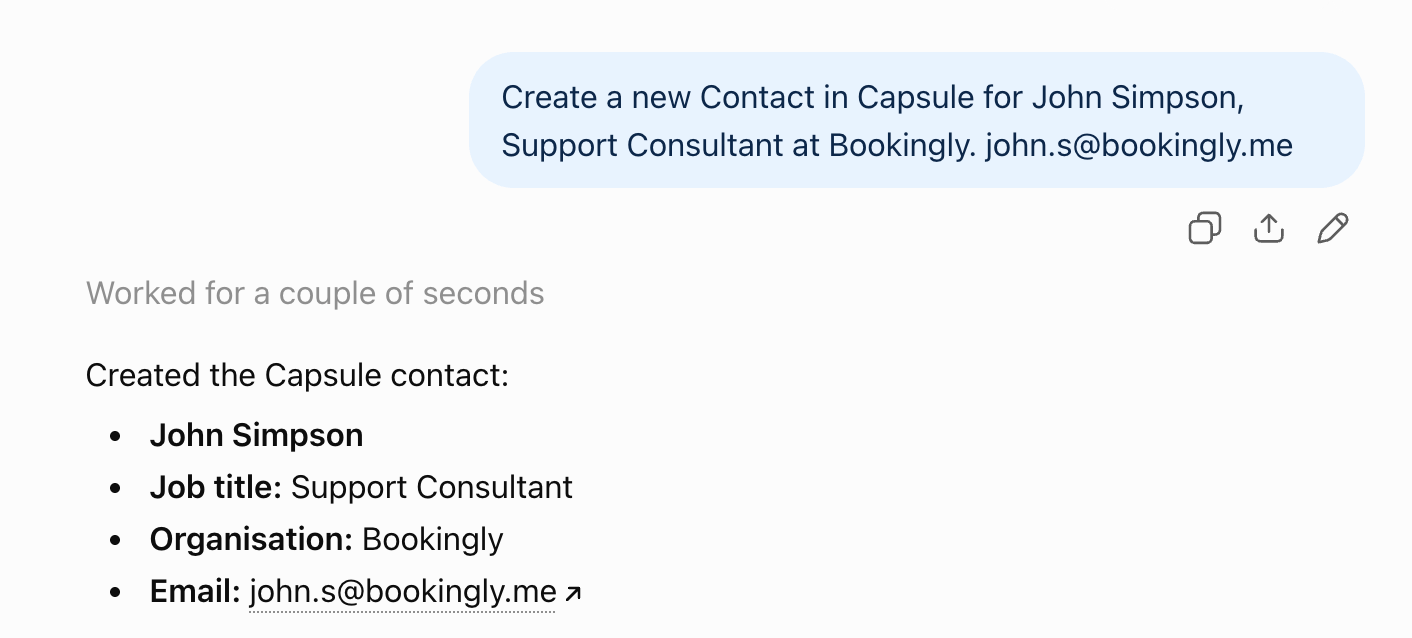
Look up and create individual Contacts, Opportunities and Projects. It can also search across all of them the same way you would inside Capsule. You could keep it simple and ask: "What's the expected close date on the Acme Corp opportunity?" or expand with something like: "List all Opportunities in the Sales Pipeline worth over $10,000 that are expected to close this month, sorted by expected close date."



Sales Pipelines, Milestones & Lost Reasons
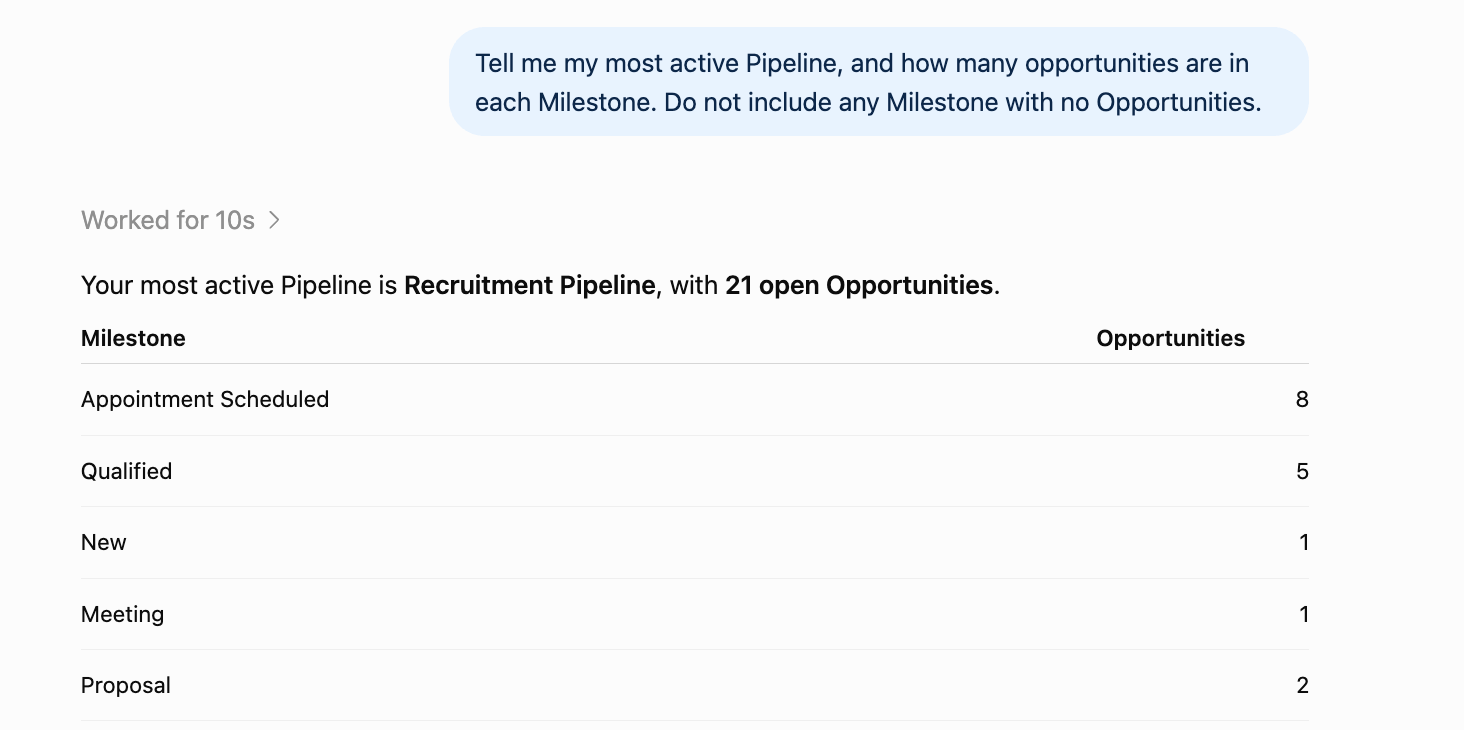
Look up how your Sales Pipeline is structured, including your Milestones and Lost Reasons, so it can translate an Opportunity's stage or lost reason into something meaningful rather than just an ID. For example, you could ask: "What Milestones are in our Sales Pipeline, and how likely are we to win at each stage?", or take it further by asking: "List every Milestone across all of our Sales Pipelines, along with its win probability, sorted from highest to lowest."

Project Boards & Stages
The same idea, but for Projects - look up your Boards and Stages to understand where a Project sits in its workflow. Ask something as simple as "What Stage is our website redesign project currently on?", or something broader like "List every Project on our Marketing Board, grouped by Stage, so I can see where things are getting stuck."
Tags & Custom Fields
Check how your account's Tags and DataTags are defined for Contacts, Opportunities and Projects. For example, you could ask: "What Tags do we use to categorize our Opportunities?" It doesn't have to stop there - you could ask: "List every Tag we have set up for Contacts, and tell me which ones are DataTags."
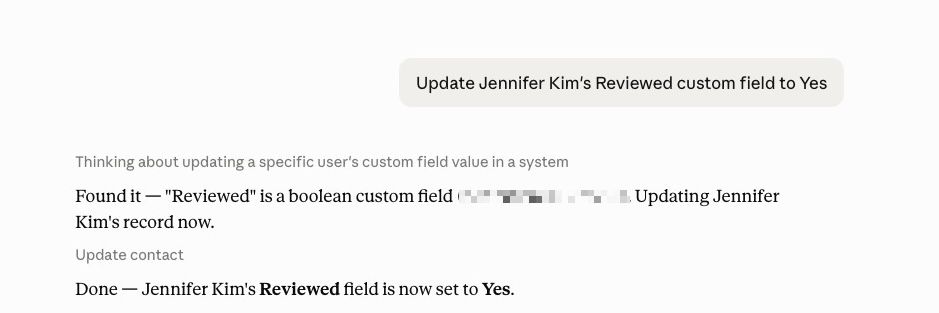
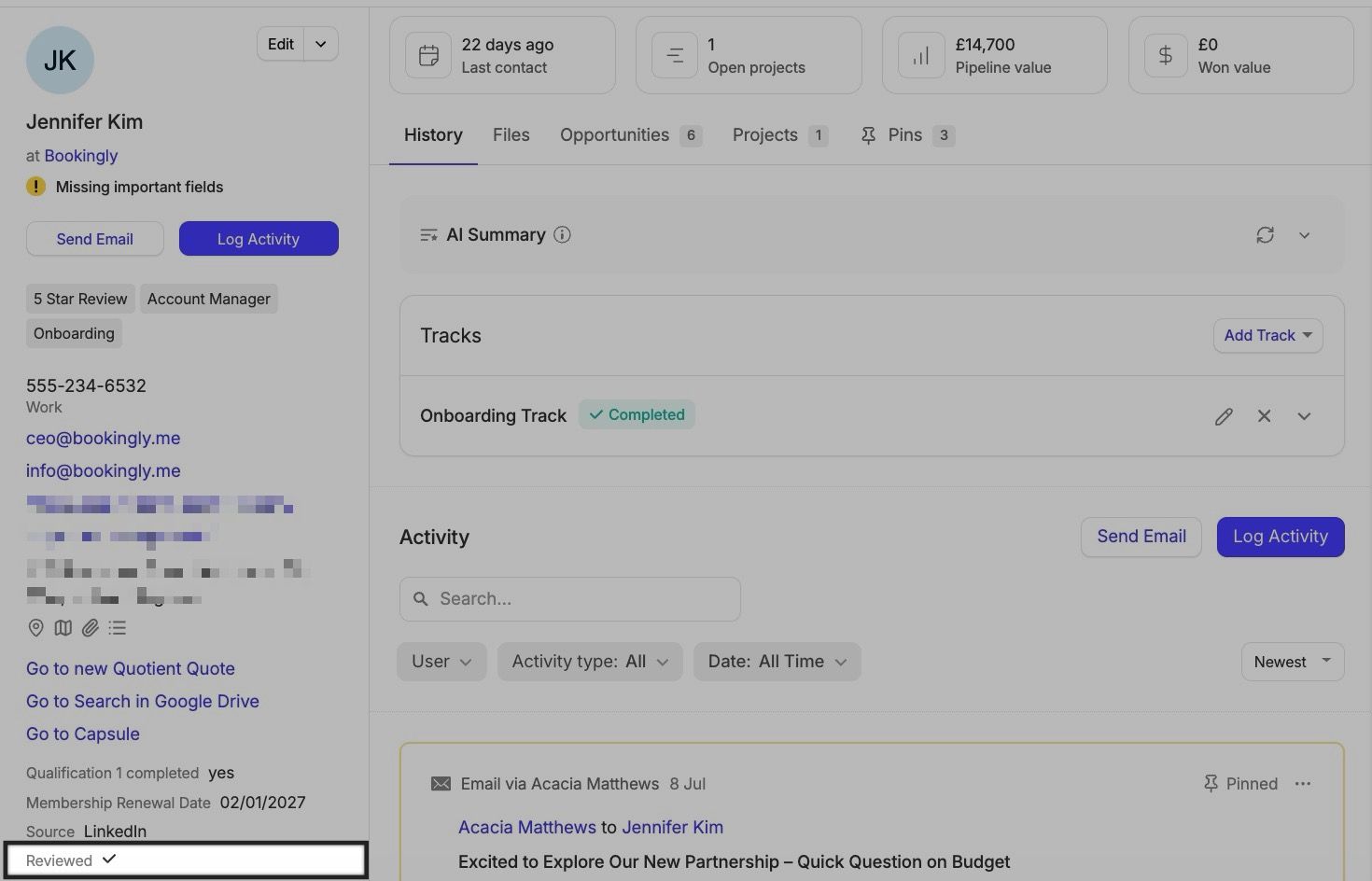
You can also look up how your Custom Fields are defined, and update their values directly on a record. For example, you could ask: "Update Jennifer Kim's Reviewed custom field to Yes".


Activities & Tasks
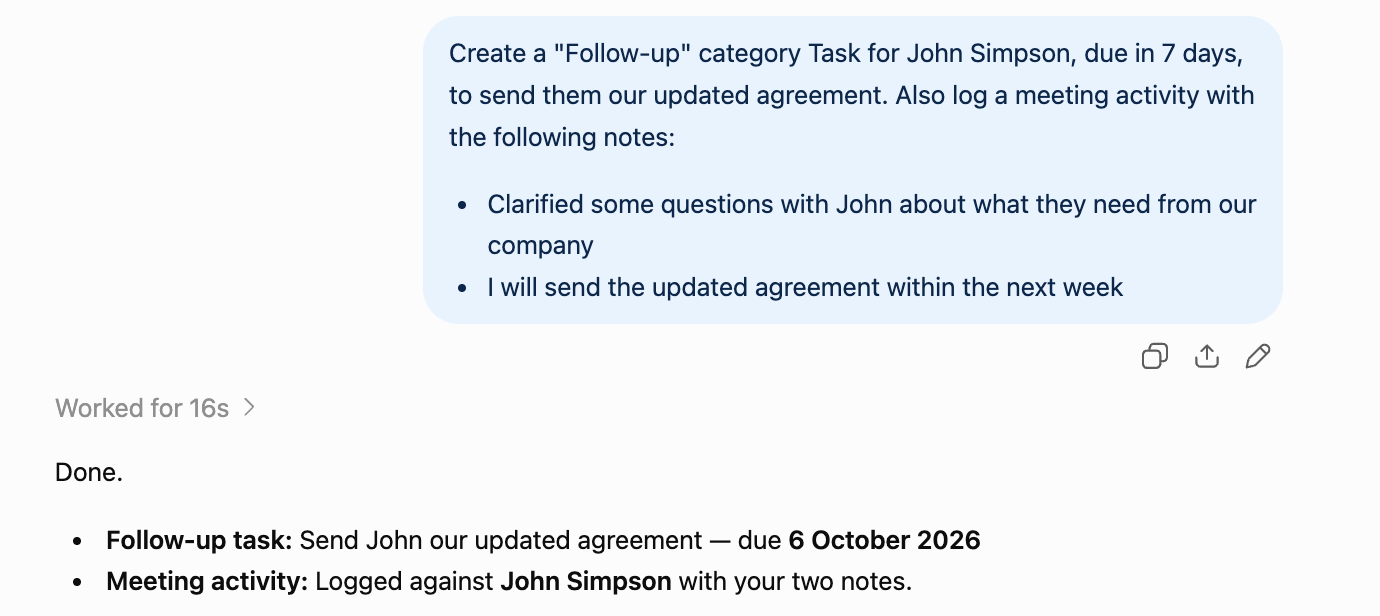
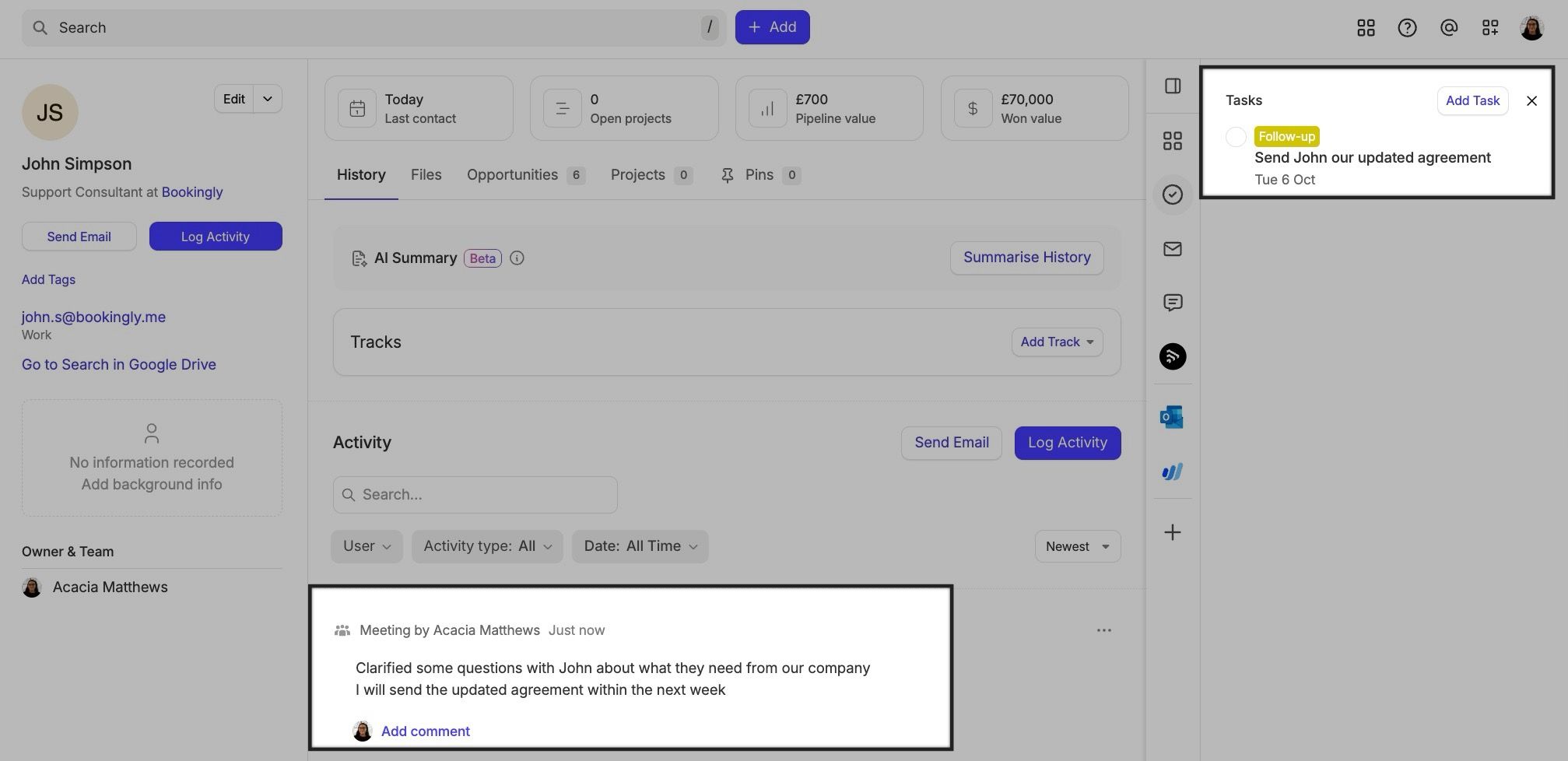
Create Tasks and log Activity against records for you.
It can also pull up the history logged against a record - notes, emails and completed Tasks - as well as any open Tasks that haven't happened yet.
This is handy for quickly catching up on a Contact or Opportunity before a call, whether you just want "What's the most recent activity logged on the Acme Corp contact?" or something more thorough like "Summarize every email and note logged on the Acme Corp contact in the last 90 days, and flag anything that looks like it needs a follow-up."


Tracks
Find which Tracks (automated sequences of Tasks) are running on a record, and what Tasks they've created so far. For example, you could ask: "Is there a Track running on this opportunity, and what Tasks does it still have left?" Or take it further - try asking: "List every open Task across all Tracks running on my Opportunities this week, grouped by due date."
Users & Teams
Look up the Users and Teams on your account, including which User it's currently authenticated as - handy for questions about who owns what or how your account is structured, from a quick "Which Team is Jane part of?" to something broader like "List every Team on our account, along with who's a member of each one."
Filtering and Searching Your Records
You can ask to search or filter your Contacts, Opportunities, Projects, Activities and Tasks without needing to know the underlying field names - just describe what you're looking for, including any Task-specific details like status or due date, and AI will work out the details. For example, you could ask: "Which open Tasks are overdue and assigned to Jane?"
How AI tools connect and what they can see
Your connected AI tool requires every request to carry a valid authorization token - there's no way to connect without one. If a request arrives without one, Capsule rejects it and points the client back to the connection details it needs to authenticate. In practice, this means:
- The AI tool authenticates using your own Capsule login, not a shared service account.
- Whatever your login can access in Capsule - including any Access Controls restricting you to certain Teams or records - is exactly what AI can access. Nothing more.
- Read access allows your AI tool to view data in your CRM, while write access is currently limited to Tasks, Opportunities, Contacts, Projects and updating Custom Fields.
How is my Capsule data used?
To answer your questions, Capsule will securely share the record data you request with our trusted sub-processors.
Troubleshooting
A few common issues you might run into when using an AI tool with Capsule, and what to do about them.
Connection isn't authorized / can't connect
Your AI tool needs to complete its authorization step before any requests will succeed - an incomplete or expired authorization will be rejected. Reconnect through your AI tool and complete the login prompt again.
AI can't see a record I expect it to
Your AI tool can only see records your own Capsule login has access to. If a record belongs to a Team you're not part of, ask an Administrator to update your Access Controls.
Updated the wrong Custom Field value, or I want to undo an update
The update tools overwrite Custom Field values directly and don't keep a change history of their own. Check the Custom Field on the record in Capsule and correct the value manually, or ask to set it back.
I want to stop my AI tool from accessing Capsule
Revoke the connection from your AI tool, or ask your Capsule Administrator to do so. This immediately invalidates the token it was using - no further requests will succeed.