Imagine hiring an assistant who writes beautifully and works at lightning speed, but forgets every one of your customers overnight. Each morning, you'd sit them down and walk them through who's who and which deals are still live before they could help with anything.
That's roughly what using AI on its own feels like. Every request starts with pasting in context, and anything useful still needs typing into your CRM afterward.
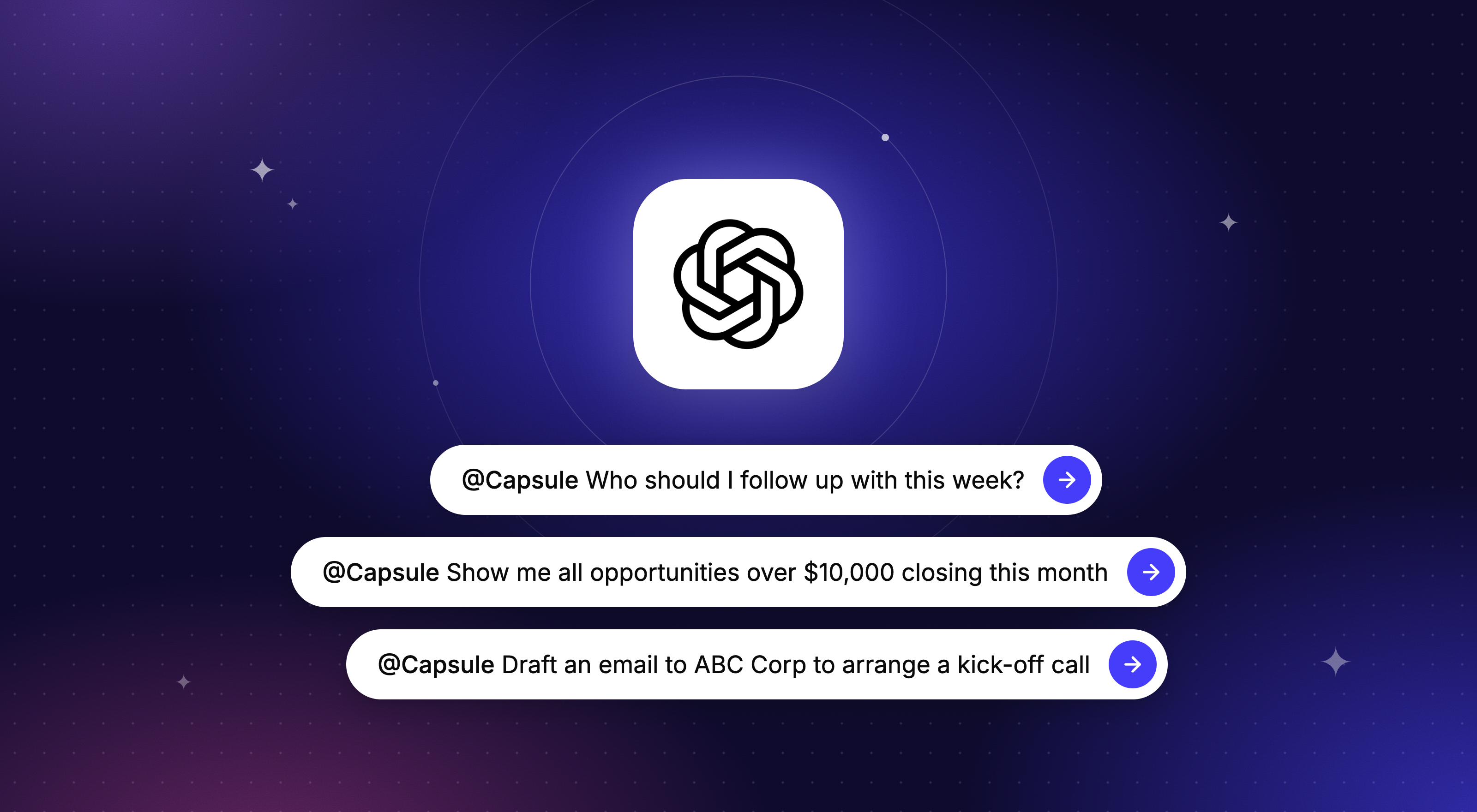
The Capsule CRM plugin for ChatGPT gives your assistant the full picture. Ask "Which customers haven't heard from us in 60 days? Create a follow-up task for each one," and ChatGPT checks your records and sets the tasks in Capsule.
There’s so much you can ask and do when you connect Capsule CRM with ChatGPT. And that assistant of yours just became so much more helpful.

What is the Capsule CRM plugin for ChatGPT?
It's our official plugin in ChatGPT's plugin directory, and it gives ChatGPT a direct line to your Capsule CRM account. Once it's connected, ChatGPT can look up your CRM data to answer your questions and add new records to Capsule when you ask it to.
What does the ChatGPT plugin actually do?
With the plugin connected, ChatGPT works like an assistant who can search for and summarize data in your CRM, as well as update and create items in Capsule at your request. Here's what that gets you:
- Find exactly what you're looking for: Years of notes and records can make a keyword search feel like rummaging through a junk drawer. Ask for what you actually mean, like "organizations in Denver with an Opportunity we lost last year," and ChatGPT finds it in your live CRM data.
- Context without the exports: Skip the download-and-upload spreadsheet samba you dance every time you need to bring ChatGPT up to speed. With Capsule’s plugin, ChatGPT can pull what it needs from your CRM when you ask.
- One message with many updates: Tired of keying the same details into different places? Ask ChatGPT to add a Contact, log a note or create an Opportunity, Project or Task, and it appears in Capsule straight away. If you've connected other apps to ChatGPT, one request can update those too.
- Turn research into leads: Researching businesses in your area usually ends with a list in a notebook, or a browser tab you'll close by accident. Ask ChatGPT to find them and add them to Capsule as new leads, so they're ready when you are.
- Spot customers before they go cold: Ask which customers haven't heard from you in a while, or which deals have stalled, and get a list you can act on today rather than finding out after they've moved on.
- Follow-ups that know the backstory: Ask ChatGPT to draft an email to a prospect or customer, and it checks their Capsule record first, from where the Opportunity stands to what you last discussed. You get a draft that picks up where the conversation left off, ready for you to tweak and send.
Prompts to ask ChatGPT with Capsule CRM

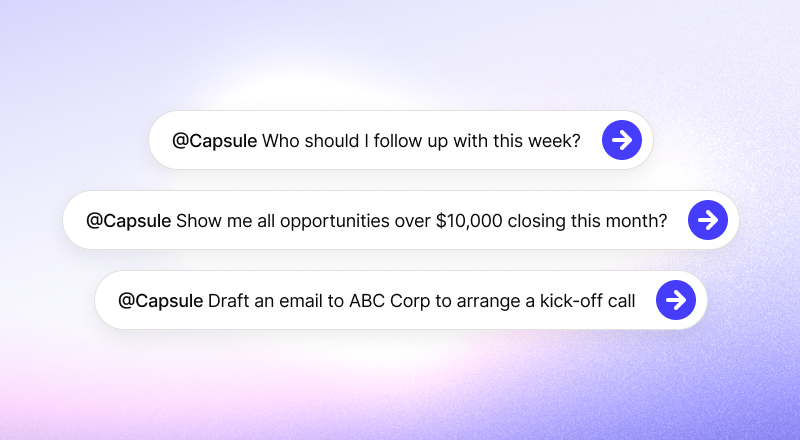
Not sure where to start? Here are some prompts to get you going:
- Morning pipeline check: "What's closing this week, and which deals haven't moved in two weeks?"
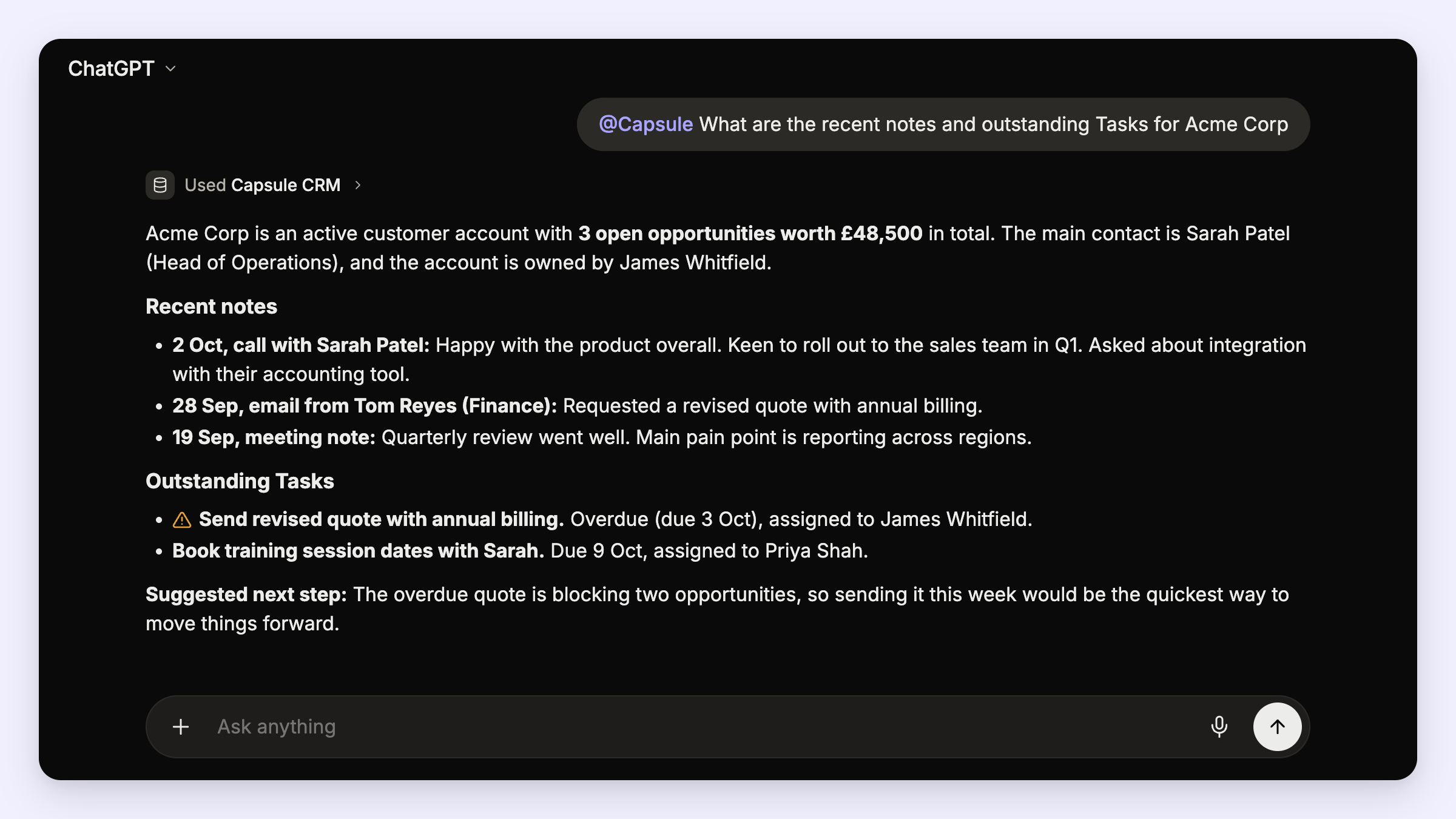
- Meeting prep: "Give me a summary of Acme Corp: open Opportunities, recent notes, and outstanding Tasks."
- Follow-ups: "Which customers haven't we contacted since August?"
- Quick adds: "Log a call with Sarah Jones and set a follow-up Task for next Tuesday."
- Reporting on the fly: "Show me won deals by source this quarter."
- New lead, zero admin: "Add Tom Reid from Northfield Design as a new contact and create an Opportunity for their website project."
- Turn research into leads: "Find accounting firms in Austin with 10 to 50 employees and add them to Capsule as new leads."
So far, the feedback has been glowing. As one user told us: "Just installed the ChatGPT plugin and it's brilliant so far!"
Who is the ChatGPT plugin for?
Short answer: anyone who already uses ChatGPT and would rather not play copy-and-paste between tabs.
If you're running the business yourself, it's a quick way to get answers from your CRM in between everything else on your plate. Ask your question, get your answer and get back to the work that pays.
If you're in charge of sales, it can be your morning check-in and your post-call admin, all in a chat window you already have open.
And if you're part of a bigger team, everyone connects with their own Capsule login, so ChatGPT only works with what each person can already see in Capsule CRM.
The ChatGPT plugin vs Capsule's built-in AI: what's the difference?
Fair question. Capsule already has AI Summaries and AI Meeting Prep built in, so where does the plugin fit? It comes down to where you're working.
Capsule's built-in AI tools live inside your CRM. AI Summaries gives you a catch-up on a specific record, and AI Meeting Prep builds a briefing before your next external call. They're right there whenever you're in Capsule.
The ChatGPT plugin works the other way around and brings Capsule into ChatGPT. If ChatGPT is where you draft and think things through, your CRM data now comes along too, so you can ask questions across your account and add records without switching tabs.
It’s just a different setting with the same purpose - helping you get through your workday faster so you can focus on work that requires a human touch. Use whichever tool suits the moment, or both.
What plan do I need to use ChatGPT with Capsule CRM?
The ChatGPT plugin is available on Capsule's Growth, Advanced and Ultimate plans. On the ChatGPT side, it works with free and paid accounts.
Just bear in mind that OpenAI's usage limits apply, and they're tighter on free accounts. If you're firing off lots of questions in one sitting, you may reach them sooner.
How do I set up the Capsule CRM plugin in ChatGPT?
It only takes a few steps. You'll probably spend longer choosing your first question. And on that note, expect to see lots of prepared prompts to choose from coming soon…
- In ChatGPT, open the Capsule CRM plugin. You can also find it in Capsule under Account Settings > Integrations > ChatGPT.
- Select Install plugin.
- Sign in to your Capsule account and approve access.
- Check your approval settings in ChatGPT, so it asks before taking action as often as you'd like.
- Ask away.
You stay in control
Connecting your CRM to an AI tool can feel like a big step, so here's exactly how it works:
- You sign in with your own Capsule login: ChatGPT only sees what your Capsule user can see, including any Access Controls on your account.
- You decide when ChatGPT checks with you: From your ChatGPT settings, you can have it ask before every action, read freely but ask before making changes, or handle low-risk actions on its own.
- About that sign-in screen: You'll see read, write and delete listed when you approve access. Capsule groups its permissions together, so the same wording appears for any app that can add data. The plugin itself can only create records and update Custom Field values, so it can't delete anything in your account.
- You can disconnect at any time: In ChatGPT, go to Settings > Plugins, choose Capsule CRM and select Disconnect.
- Your chats follow OpenAI's terms: Conversations are handled under OpenAI's policies and your own ChatGPT data settings. On personal plans, that includes whether "Improve the model for everyone" is switched on.
ChatGPT cannot access your CRM without your say-so: Imagine your Capsule CRM account as a fenced field, and ChatGPT as an assistant waiting at the gate to your data. It only steps into the field when you ask about your CRM data or instruct it to add or change something in Capsule. The rest of the time, it stays outside.
Your CRM, now on speaking terms with ChatGPT
The copy-and-paste routine can finally retire, and your browser tabs can breathe a sigh of relief. The next time you ask ChatGPT for help with a customer, it'll already know who you're talking about.
Install the Capsule plugin for ChatGPT, sign in and ask your first question. We'd love to hear what you ask it first.
New to Capsule? Try it free for 14 days.
Frequently Asked Questions
The plugin is available on Capsule's Growth, Advanced and Ultimate plans.
No. It works with free and paid ChatGPT accounts. Free accounts are subject to OpenAI’s usage limits.
Only what your own Capsule user can see. You sign in with your Capsule login, and you choose which tools ChatGPT can use.
Yes. Ask it to add Contacts, log notes or create Opportunities, Projects or Tasks, and they'll appear in Capsule straight away.
In ChatGPT, go to Settings > Plugins, choose Capsule CRM, and select Disconnect.
The plugin is built on Capsule MCP, packaged up so you can install it in ChatGPT in a couple of clicks.