
The call’s over. The race is on.
You hang up, and the countdown begins.
It’s a race against time - specifically, how long until you forget the key takeaways from your call. Outside, construction work bores through your concentration. Inside, your bladder rings with the call of nature. You manage to pull up the contact record, hit ‘Log Activity’ and…
It’s gone. All those glaring pain points and glittering opportunities: vanished. You check your notebook and find half-finished scribbles about your lead’s… dog? There’s that familiar frustration again. Sigh.
In an alternate reality, you’ve connected your Capsule CRM account with Zoom. You hit ‘Leave call’ and make for your ivory throne, safe in the knowledge your call summary and transcript are already syncing to the contact record. Ahhh.
What does the Zoom integration for Capsule CRM actually do?
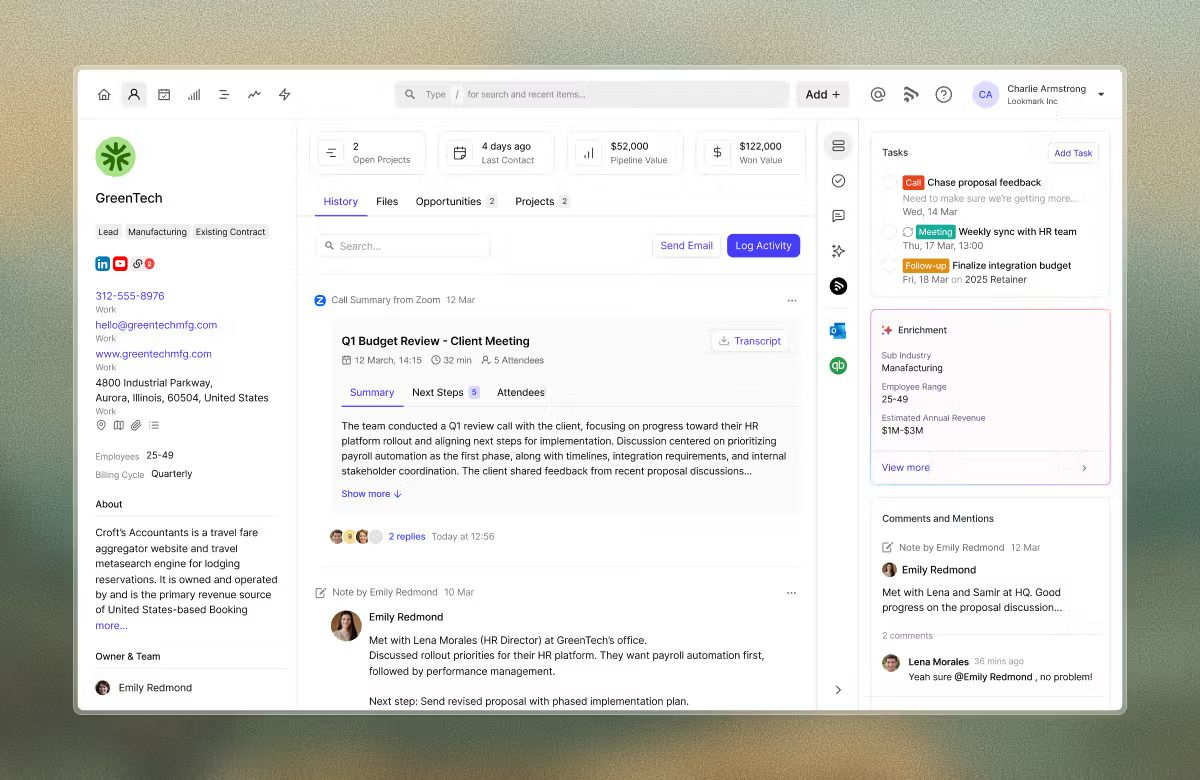
If you're already recording your calls with Zoom's AI Companion, Capsule CRM’s integration now does the filing for you. The activity logged in the record goes far beyond standard details like date and time, splitting the full activity into three tabs: Summary, Next Steps, and Attendees. Here's what gets synced (automatically!) the moment your call ends:
- The meeting itself, logged as an activity on the contact's record: who was there, what it was about, when it happened. Top-level but need-to-know stuff.
- An AI-generated summary, if you choose to sync it, covering what was discussed and any next steps.
- The full transcript, available to download from the activity or found later in the contact record’s Files tab, in case you’re after direct quotes or full context on top of the highlights.
- A quick way to add any other call attendees as contacts, right from the same activity, if they're not already in your Capsule account.
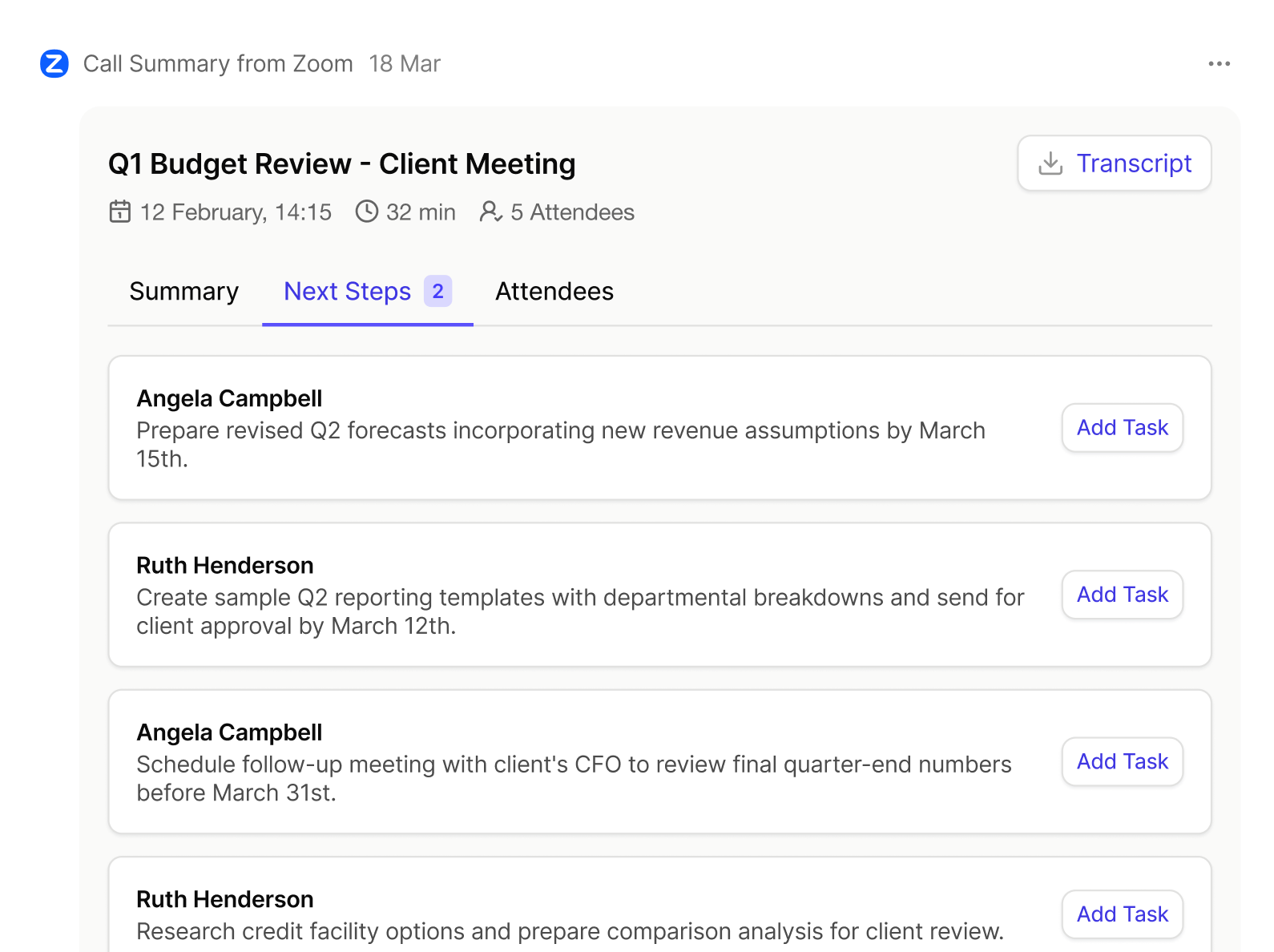
- Suggested Tasks: You’ll find these in the ‘Next Steps’ tab. Zoom identifies next steps from your calls and adds them to your activity as optional new Tasks. Just click ‘Add Task’, and it’s added to your to-do list.
It all sits right there next to your notes, emails, Opportunities and Projects for that contact. So when you (or the colleague covering for you while you're out) open a contact record, the whole story's already written. Not fruitlessly tucked away in the crevices of your gray matter, or hiding, dormant, in the depths of someone else’s Zoom account.

What can Zoom do for you?
Connecting your Zoom account with your CRM may just blow your socks off. It's the next best thing to having a PA on the payroll.
- Greater visibility: Every call's summary and transcript lands on the contact record, so the story of a relationship is there in full, whether you held the meeting yesterday or your colleague called three months ago. I can’t promise omniscience, but you’ll be pretty close, I’m sure.
- Move over, manual admin: Unburden yourself from the write-up that follows every call: copy-pasting and digitalizing your only-half-sensical notes is joyfully redundant now that Zoom syncs the summary and transcript for you. It even suggests follow-up tasks you can add with a single click.
- A lighter mental load: the old you urged your brain to remember everything, desperately scribbling away in your notebook. All that on top of stressful discovery calls, pitches, and providing sterling customer service. The new you? Cool as a cucumber, breezing into your next task. Fewer frown wrinkles, too.
- It’s covered, from Z to A: Using Capsule’s AI Summaries or AI Meeting Prep? Your Zoom call summaries inform them, too, sharpening your pre-call briefings and each time you need to peek into a contact record. All the deets, right from (Z)oom to (A)I Meeting Prep and more. I explain this further below.
- Stronger teamwork: Out sick, on vacation, or just handing off a lead? Doesn't matter. Whoever steps in gets the full story. No risky 30-minute wormholes into endless “Untitled Document (14)” files.

Who benefits from the Zoom-Capsule CRM integration?
Short answer: anyone who gets on a Zoom call with a customer, prospect or supplier and would rather not spend the next twenty minutes typing it up or googling the nearest hypnotherapist to remember.
If you're running the business yourself, taking the call, closing the deal and doing the admin afterwards, this buys back a chunk of the time you don't have. You don't need to remember to write anything down. It's just there.
If you're carrying a full pipeline solo, with no assistant and a manager asking for updates, this means your CRM stays current without you lifting a finger after the call ends. Your deal history builds itself while you move on to the next conversation.
And if you're part of a bigger team, it means nobody has to chase anyone for "what happened on that call", because it's already logged against the contact, visible to whoever needs it.
What plan do I need to use Zoom with Capsule?
The Zoom integration is available on all paid Capsule plans. You'll also need Zoom AI Companion switched on for your Zoom account, since that's what generates the summary and transcript Capsule CRM syncs across.
How do I set it up?
You'll need to be an administrator in both Zoom and Capsule to connect the two. Once that's sorted:
- In Capsule CRM, go to Account Settings > Integrations
- Find the Zoom tile
- Select Enable Integration
- Choose Connect to Zoom, log in, and select Allow to give Capsule the right permissions
- Pick your sync settings: sync summaries and transcripts in full, or just log the basic meeting details without them
- Hit Save Settings, and you're done. You zoomed through that! haha…
Capsule will try to match your Zoom users to your Capsule users by email automatically. If a match doesn't happen (or you add someone new down the line), you can link individual users manually from the same Integrations screen.
One thing worth knowing: a summary only lands on a contact record if that person already exists as a Capsule Contact, and a Zoom account can only connect to one Capsule account at a time.
Smart call summaries; smarter call briefings
Connecting Zoom is worth doing on its own. But if you're considering using Capsule's AI Summaries or AI Meeting Prep, you’ll see an added benefit: both AI tools pull from activities and notes logged in each contact record. Syncing in your Zoom call summaries supercharges that power. More data. More accuracy. Way better summaries.
Here’s a quick refresh on how these two tools work, and what makes them different.
The AI Summaries tool pulls from a contact's full activity history to give you a quick, accurate catch-up whenever you need one. With your call summaries and the original transcript – instead of a rushed, half-legible note – our AI will return a better-informed summary of your contact history.
AI Meeting Prep works in the other direction. Before your next call, it builds a briefing from everything on record, including the transcript and summary from the last one, so you open the call already caught up instead of scrambling through old notes five minutes beforehand.
Connect Zoom once, and both tools quietly improve every time you use them, with no extra input on your end.
Get all your external calls written up in Capsule
Somewhere, your notebook throws a small, dramatic tantrum: it's out of a job. The second you hang up, Capsule’s Zoom integration logs your Zoom calls, syncs the summary, and files the transcript away in the contact record, so you can move on to something new. Heck, throw caution to the wind and give yourself the coffee break you’ve earned!
Connect Zoom with Capsule CRM, let this nifty integration do the dull-as-doorknobs work for you, and stick to remembering important things like today’s your mother-in-law’s birthday. And you’ve not bought a card.
Set up the Zoom integration in your account settings, or see the full integration details here.
New to Capsule? Try it free for 14 days and see what your contact records look like when the admin does itself.
Frequently Asked Questions
The Zoom integration is available to customers on any paid Capsule CRM plan.
There are a few things you’ll need before you can use Zoom with Capsule CRM. To get started, the administrator for both platforms must enable the connection. The following are necessary to sync your Zoom calls:
- Your organization must have a Zoom Workplace account that enables the AI Companion tool.
- Your external attendee must be invited to the Zoom meeting via email, and logged into their own Zoom account at the time of the call. If they join as a guest without logging in, Zoom won't have an email address to match them against.
- Each individual wishing to sync their Zoom calls with Capsule CRM must switch on the AI Companion in Zoom. We recommend the ‘Auto Start’ setting to prevent missing key details, new contacts, and recommended Tasks.
- At least one external attendee from your call must be logged in your Capsule account as a Contact so that the integration can match the call to an existing record. Don’t worry if other people on the call aren't saved as contacts yet; you can add them from the activity after the call.
Yes. The integration relies on Zoom AI Companion to generate the summary and transcript that get synced across, so this needs to be enabled on your Zoom account.
No. Only calls that take place after you've connected the integration will be logged. Historical meetings won't be pulled in.
Will this create new contacts in Capsule? No. The integration matches meeting attendees to existing Capsule Contacts by email address. It won't create new records, and internal, team-only calls aren't synced.
No, a Zoom account can only be linked to one Capsule account at a time.
Any summaries and transcripts already logged will stay exactly where they are. You'll just stop getting new ones synced across.
Capsule’s integration does not work with Zoom Phone. In order to sync meeting summaries, transcripts, contacts, and follow-up steps to your Capsule account, you need to make calls through Zoom Meetings.