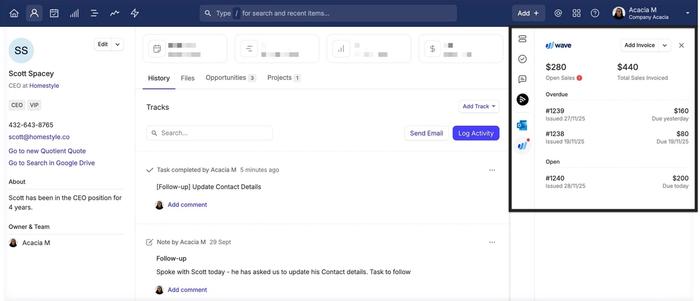
The Wave integration allows you to keep your customer data in sync and gives you an instant overview of what invoices you have for a Contact, without needing to leave Capsule. When you want to start invoicing your Contacts, the integration also makes the process of adding new Contacts from Capsule to Wave quick and simple.
What does the Wave integration do?
Integrating Capsule with Wave will automatically add all Wave Contacts to your Capsule account.
All invoice information in Wave is summarized in Capsule including;
- The total sum of paid or open invoices
- Payment due dates
- Whether an invoice has been paid
- Overdue invoices on the linked Contact record in Capsule
Once the integration is connected, Capsule will keep updating Wave with any changes you make to your Contact records, so you should always treat Capsule as your source of truth, e.g. if you update an address in Capsule, the corresponding Contact in Wave will be automatically updated too.
Lastly, new Capsule Contacts can also be easily added to Wave when you are ready to raise an invoice. Read more about exporting from Capsule to Wave in this section.
How to set up the Wave integration
If you don’t already have a Wave account, then sign up for one now at Wave
- In Capsule, go to Account Settings > Integrations
- Click the button to Configure Wave
- Choose the option to Enable Integration. If you use Teams in Capsule to control access to Contact information, you can select a default team that all Wave Contacts are added to.
- Click Connect to Wave
- You will be asked to log in to your Wave Account. After, choose the account to link to and click Allow Access to give Capsule access to your Wave account. The integration is now up and running.
An initial sync takes place from Wave to Capsule, linking up existing Capsule Contacts with their corresponding Wave Contacts. It also adds any Contacts that don’t already exist in Capsule.
What happens during the Wave sync?
If you create a new customer in Wave without adding them to Capsule first, they’ll be added to Capsule during the next scheduled sync, which runs roughly every two hours. You can also trigger an update at any time by selecting Sync now on the Wave settings page in Capsule (Account Settings > Integrations).
Wave Customers will be created as either a Person and a linked Organization in Capsule, or just an Organization. Both scenarios are detailed below:
- If the Wave customer has a first name/last name, all of the “Primary Contact” details (including the first name, last name, email and phone fields) will be added to a Person. All other details will be stored on a linked Organization.
- If the Wave customer does not have a first/last name, Capsule will only create an Organization with all details. This includes the phone and email fields.
As Capsule is the source of truth, changes in Capsule will update the Wave Customer:
- For Contacts where option 1 above is true - changes in Capsule to the Person’s first/last name, email and phone fields will be reflected on the Wave Customer. Updating those same fields on the Organization won’t be reflected in Wave.
- For Contacts where option 2 above is true - all changes made in Capsule will be reflected in Wave.
Exporting Contacts from Capsule to Wave
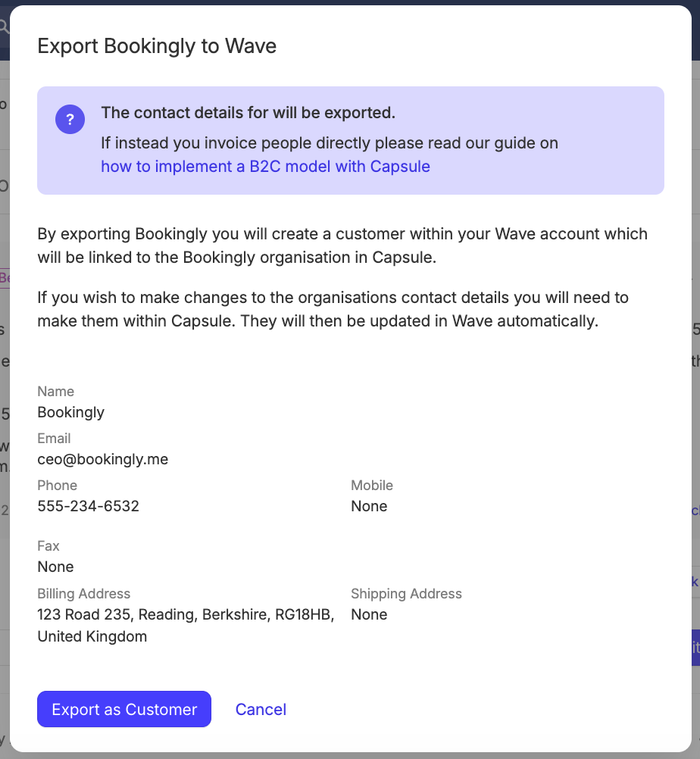
If you have a Contact in Capsule not displaying any Wave information, and you want this Contact in Wave, simply click on Export to Wave from the integration panel. This saves having to manually add this Contact to Wave for invoicing.
The Contact will be added to Wave regardless of the Capsule Contact type (Person or Organization):
- If you export a Person that is linked to an Organization, the First Name and Last Name of that Person will also be exported to Wave.
- If you export an Organization with linked People, the integration will only create a Wave customer for the Organization. No details from the linked People will be exported.
Deleting and managing duplicates with Wave
Duplicates may occur because of the integration. If there is a slight difference in the spelling of a Contact name between Capsule and Wave, the sync will treat the customer in Wave as new and create a duplicate Contact in Capsule. If duplicates are accidentally created, you can merge them following the steps here. These need to be merged with the exact same name as what is stored in Wave, or Wave will continue to send the ‘new’ Contact to Capsule.
Deleting a contact has to happen in both Wave and Capsule, in that order. Deleting a Contact in Capsule first, without deleting the Contact in Wave will mean that the Contact will be added to Capsule again the next time the sync takes place. Because of this, it is important to delete the Contact in Wave and then delete it in Capsule.
Using Wave as a B2B vs B2C Business
Wave only supports Organization records (which are defined in Wave as a Customer). As it does not store Contacts as individual people:
- All Contacts exported from Capsule to Wave will be created as a Customer. Read more in the section on Exporting Contacts to Wave.
- Contacts imported from Wave to Capsule will appear as People and linked Organizations - or just an Organization, depending on specific criteria. Read more in the Wave Sync section.
This ensures that invoices in Wave are always linked to a Customer, regardless of whether the original Contact in Capsule was a business (B2B) or an individual (B2C).
How to disable the Wave Integration
To disconnect the Wave integration:
- In Capsule, an Administrator will need to go to Account Settings > Integrations
- Next to the Wave Integration, choose Manage
- Click Disable Integration and confirm.
Once the integration has been disabled, any invoice history and links to Wave will stop being displayed, but Contacts created by the integration will remain in Capsule.
