This Zap template is perfect for ensuring your marketing leads are instantly captured in your CRM. When a new contact is added as a Subscriber in Constant Contact, they will automatically be found or created in Capsule.
- When a new subscriber joins Constant Contact, a search is performed in Capsule.
- If the new subscriber doesn’t exist in Capsule, they will be added as a new contact record.
Getting Started: What You'll Need
To build this automation, you will require:
- A Constant Contact account: An active subscription with at least one contact list.
- A Capsule CRM account: An active Capsule CRM account.
- A Zapier account: A Zapier account allowing multi-step Zaps is recommended for best results.
How to set up the Constant Contact to Capsule Zap
1. We have created a template to make the process as simple as possible. Click on the below Zapier template link below to load the Constant Contact Template:
You will be prompted to log in to your Zapier account. If you don't have an account, you can sign up here - Zapier.
2. In the Zap template, click on the New Contact step and select Sign In, as shown below:
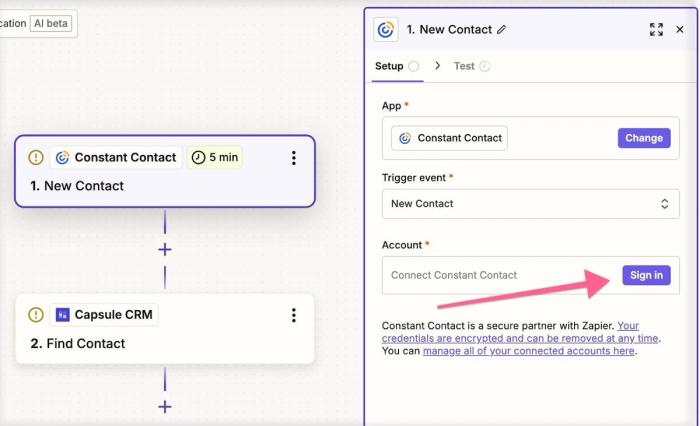
A new window will open allowing you to log into your Constant Contact account.
3. To test Zapier’s connection to Constant Contact, click on Test to verify that Zapier is able to see subscribers in your account.
Constant Contact will pull a recent subscriber from your list to use for this purpose.

4. Click on the Find Contact step in the template and choose Select to sign in to Capsule CRM.
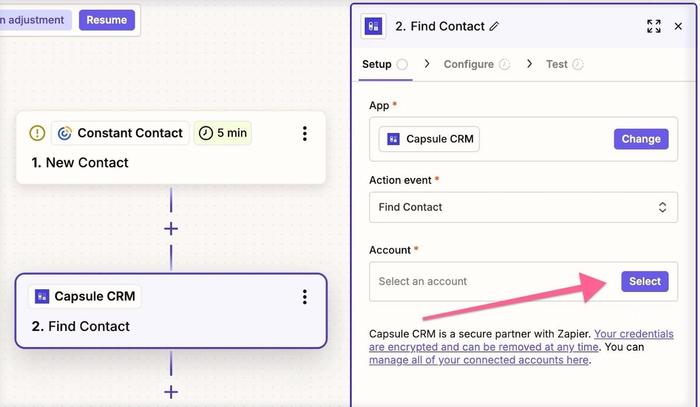
A new window will open asking for your Capsule CRM credentials. Enter your details and authorise Zapier to access your Capsule CRM account. Once connected, click Continue.
This step finds the contact in Capsule to prevent duplicates. If the contact isn’t found in Capsule, a new contact record will be created for them.
5. Optional Step - A tag can also be added to any newly created Contacts, so subscribers added from Constant Contact can easily be identified and filtered within Capsule.

This is also useful if you have new Contacts being created from other sources too, as it allows for the filtering of Contacts by where they have been created from.
You can see above that we have created a tag within Capsule called Constant Contact Subscriber. This tag will be added to all Contacts that are added to our Capsule by this Zap.
6. Test the action to ensure Zapier can successfully create or update a Contact in Capsule CRM with the data from Constant Contact.
Once Test Step has been clicked, review your Capsule account to ensure the test Contact has been successfully added to your Capsule CRM:

7. Once the test is successful, turn the Zap on using the toggle switch in the top left of the screen.
This activates the integration, and from this point onward, any new Constant Contact subscribers will automatically create a Contact (if they don’t already exist in Capsule).
Benefits of this Integration
- Reduce manual data entry: Automating admin saves time, reduces errors, and ensures your mailing list matches your CRM.
- Improve follow up speed: This ensures that every new subscriber is visible to the sales team swiftly after joining your list.
- Create a single source of truth for sales data: Centralized customer and marketing data enables smarter decision-making and better team collaboration.