Campaign Monitor is an online email marketing platform that helps businesses create, send and manage their email campaigns. With the help of an Automation tool, you can add new Subscribers in Campaign Monitor to Capsule. This article will walk you through how to do this using Zapier or Make.
Getting Started: What You'll Need
To build this automation, you will require:
- A Campaign Monitor account: An active subscription to Campaign Monitor with at least 1 List
- A Capsule account: An active Capsule account.
- A Make.com or Zapier account
How to set up the Campaign Monitor to Capsule Automation
Click on the tabs below to view the instructions for your chosen Automation tool:



How to set up the Campaign Monitor to Capsule Scenario
This Make Scenario will help you automate the process of adding a new Contact to Capsule each time there is a new Subscriber in Campaign Monitor to a chosen list.
- When a new Subscriber is added to your chosen list in Campaign Monitor, a search is performed in Capsule CRM.
- If the Subscriber doesn’t exist in Capsule, they will be added as a new Person record.
- If the Subscriber already exists, a Note will be added to their record instead.
We have created a template to make the process as simple as possible. Click on this link to take you to the landing page: Add new Campaign Monitor Subscribers as Capsule CRM Contacts then choose + Use this Scenario to load it.
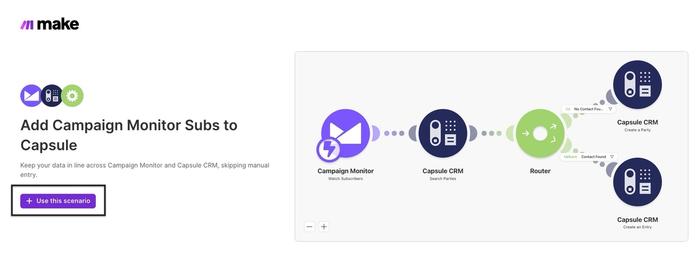
You will be prompted to log in to your Make account. If you don't have an account, you can sign up here - Make.com.
Find new Campaign Monitor Subscribers
- The first step is to watch for a new Subscriber in Campaign Monitor. Click on the Campaign Monitor module (first circle on the left) and choose Create a Webhook
- Give your Webhook a Name to easily identify it, and then choose Create a connection.
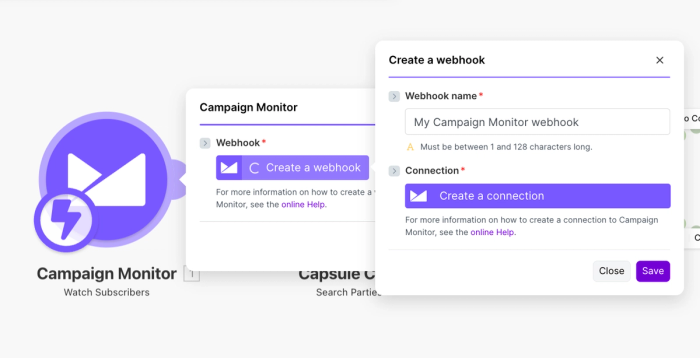
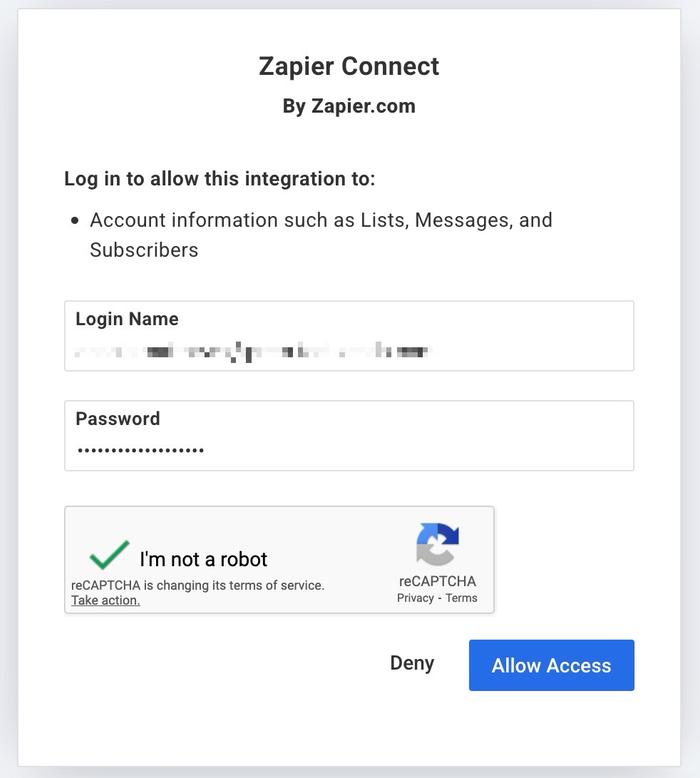
3. Give your Connection a name and choose Save to link Make with Campaign Monitor. A new window will open at this point, where you can enter the login details for your Campaign Monitor account.
You will also be asked to give Make specific permissions, choose Allow access to complete the connection.
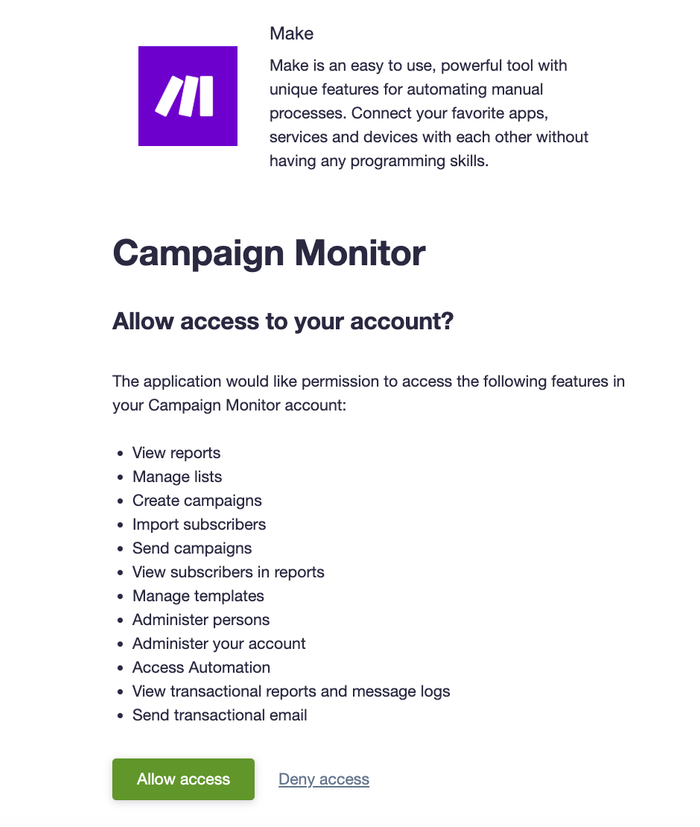
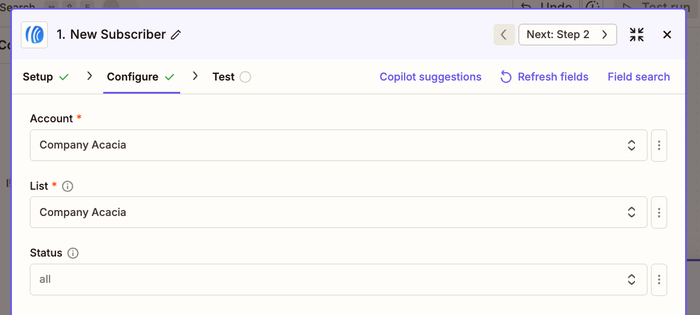
4. When directed back to Make, select your chosen Client ID and List ID
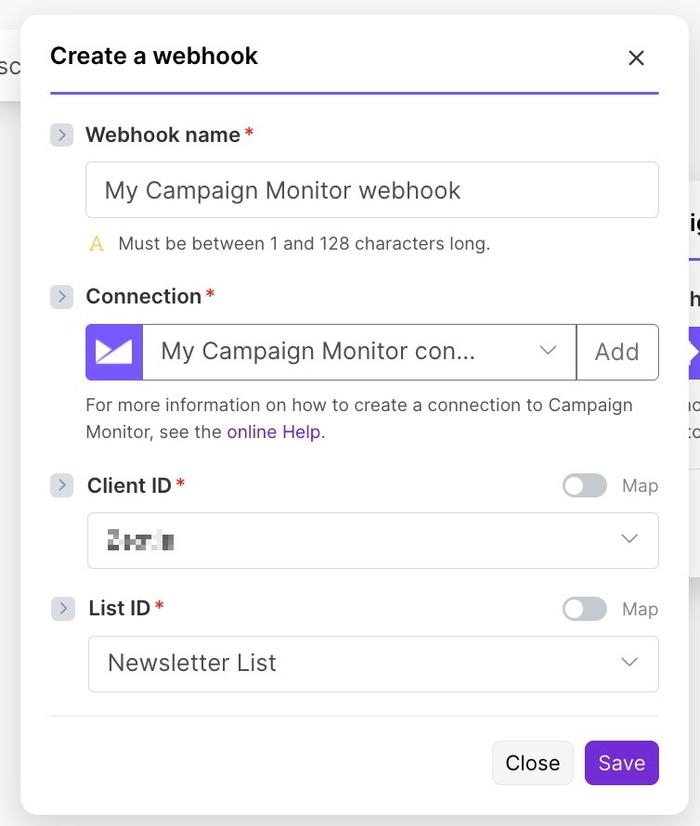
5. After clicking Save, you will be directed back to the original circle. Select Save again, to complete this overall step.
Find Capsule Contact
1. Now we can check if the Contact already exists in Capsule. Click on the Capsule CRM (Search Parties) module.
2. In the Connection field, follow the steps to choose your Capsule account. When prompted for permissions, choose Allow.
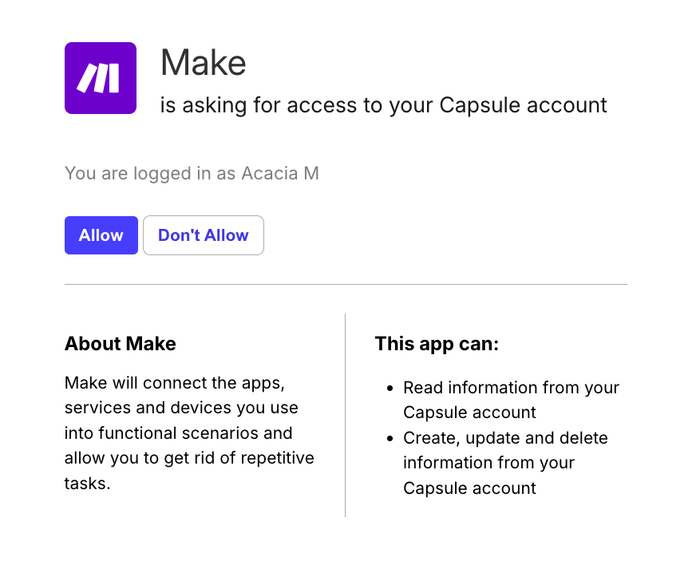
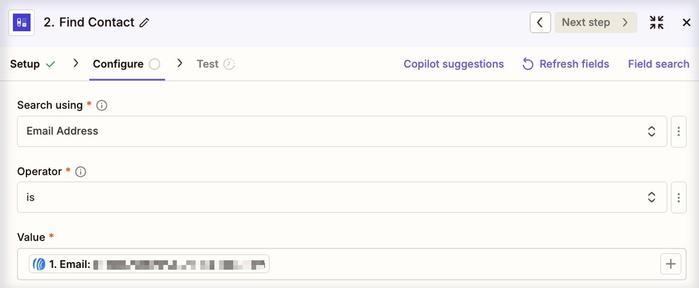
3. Check that the search field is pre-populated with the Events[]: Email Address field from Campaign Monitor, then select Save.
Create Capsule Contact
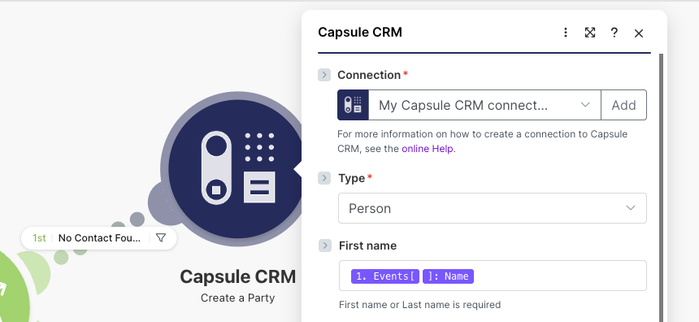
- Now, we can set up the creation of the Capsule Contact if it doesn't already exist. Click on the Capsule CRM (Create a Party) module.
- In the Connection field, use the drop-down to select your Capsule account.
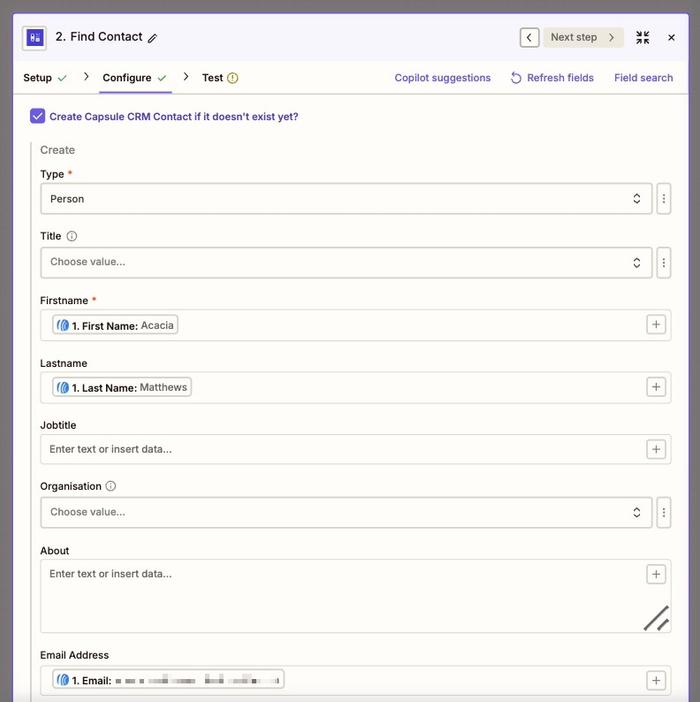
- Fill in the details for the Contact that will be created if it doesn’t exist in Capsule. The Type, First Name and Email address should already be populated for you. This step is important because here you’re mapping the relevant fields from Campaign Monitor to the correct Fields within Capsule.
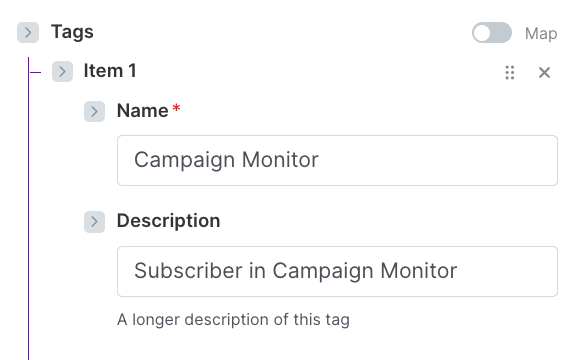
4. Optional Step - A tag can also be added to any newly created Contacts, so Contacts newly added from Campaign Monitor can easily be identified and filtered within Capsule. This is also handy if you have new Contacts being created from other sources too, to see which tool it was created from.
You can see below that we have created a tag within Capsule called Campaign Monitor. This tag will be added to all Contacts that are added to our Capsule by this Scenario.
Once you’re happy with the configuration, click on the Save button.
Add note to Capsule Contact
- Next, we can set up to add a note to the Capsule Contact if it already exists. Click on the Capsule CRM (Create an Entry) module.
- Here, you will see the Entry, Party ID and Content of your Note populated for you. If needed, you can make any changes to its Content.
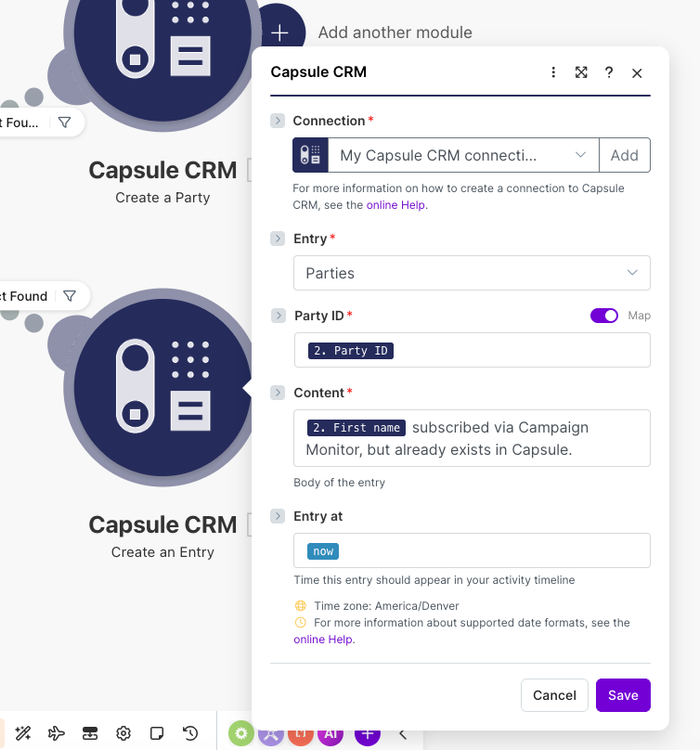
Once you’re happy with this, choose Save.
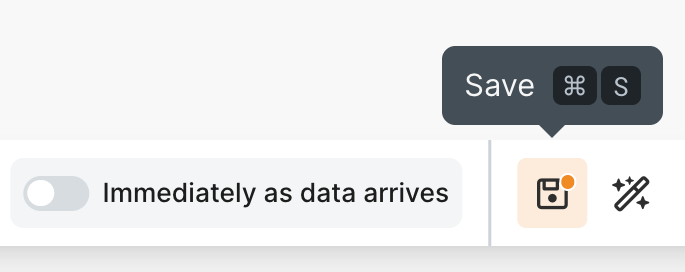
3. At this point, you will need to save your scenario using the main Save button at the bottom of the editor
Test your Scenario
- Now you can test your scenario. You’ll need to ensure that you have at least one historical Profile in your Campaign Monitor account. If not, please go back and add dummy data for the purpose of creating this Scenario.
Then, use the Run Once button at the bottom of the editor.

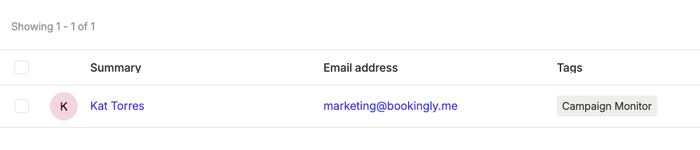
2. If the Contact isn’t already in Capsule, this will create it for you. Below you will find a screenshot of how this would reflect a new Contact added to Capsule:
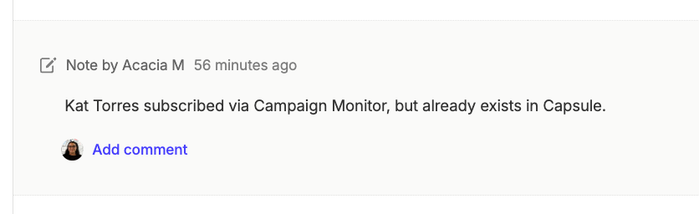
Or, if the Contact is already in Capsule, you should see the note added to it:
3. If it all looks correct, you can turn your Scenario on, using the Immediately as data arrives button (at the bottom of the editor). At this point, you can change the interval at which Make checks for new Campaign Monitor Subscribers.
Once you are happy with your choice, select Save.
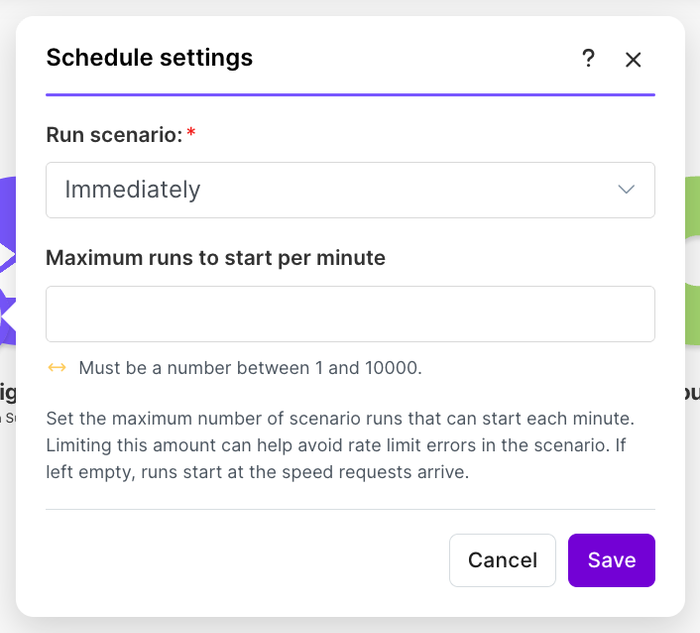
This activates the Make Automation. From this point onward, any new Subscriber in your chosen Campaign Monitor list will be added to Capsule.
Benefits of this Integration
- Time Efficiency: Automates the transfer of Contact information from new Campaign Monitor Contacts, saving time on manual data entry.
- Accuracy: Reduces the risk of data entry errors, ensuring that Contact details are accurately captured.
- Productivity: Streamlines the process of updating Capsule CRM, allowing you to focus on more critical tasks such as customer engagement and follow-up.
- Seamless Workflow: Maintains an up-to-date and organised Contact database, enhancing your CRM's efficiency and effectiveness.