Better Proposals is a tool that helps businesses create, send and track professional business documents. With the help of Zapier, you can automate actions in Capsule (updating a Contact or adding an Opportunity) based on a trigger in Better Proposals. We have covered both useful Zaps in this article and will show you how to set them up.
Getting Started: What You’ll Need
To use this automation, you will need:
- A Better Proposals account: An active subscription to Better Proposals
- A Capsule CRM account: An active Capsule CRM account
- A Zapier account: A Zapier account allowing multiple Zap steps is necessary to use these templates.
How to set up the Better Proposals to Capsule Zaps
As mentioned above, Zapier works with Triggers and Actions - this means you can set up a Trigger in Better Proposals and then an Action in Capsule based on this. Click the right link below for the instructions to set up your Zap:
- How to update a Capsule Contact from a sent Proposal in Better Proposals
- How to add a Capsule Opportunity from a sent Proposal in Better Proposals
How to update a Capsule Contact from a sent Proposal in Better Proposals
This zap will help you automate the process of updating the history of a Capsule Contact (e.g. adding a note) each time you send a Proposal in Better Proposals. If the Contact doesn't already exist in Capsule, it will be created for you.
We have created a template to make the process as simple as possible. Click on the Zapier link below to load the Better Proposals Template:
You will be prompted to log in to your Zapier account. If you don't have an account, you can sign up here - Zapier.
Zap Trigger: Proposal Sent
- The first step is to define the Trigger, which is when a Proposal is sent in Better Proposals. You should be directed to this step in the template - but if not, click on the tile for Proposal Sent.
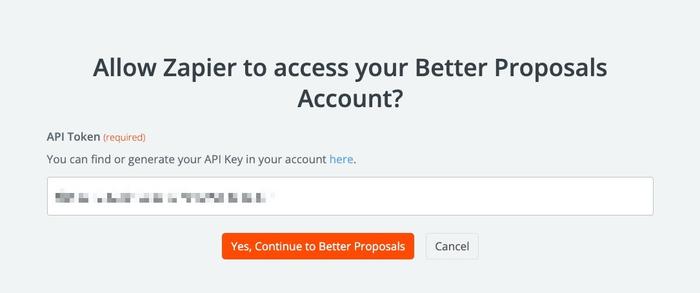
- In the Account field on the same page, choose Sign In to link Zapier to Better Proposals. Click here to generate an API Key for the Zapier integration and copy it from Better Proposals.
Once generated, paste the API key into the Zapier field and choose Yes, Continue to Better Proposals to complete the connection.
3. When directed back to Zapier, choose Continue
4. At this point, you will be asked to Test your Trigger. Use the Test Trigger button to complete the check - here you will be able to see examples of your created Proposals in Better Proposals.
Select one of the examples, then choose Continue with selected record.
Zap Action: Find Capsule Contact
- Now we can check if the Contact already exists in Capsule, and if not, then create it. If you're not redirected automatically, click on the tile for Find Contact.
- In the Account field, choose your Capsule account. If you’ve set up a Zap for Capsule earlier, you’ll be shown an existing account. Or follow the instructions to link your account and click Continue.
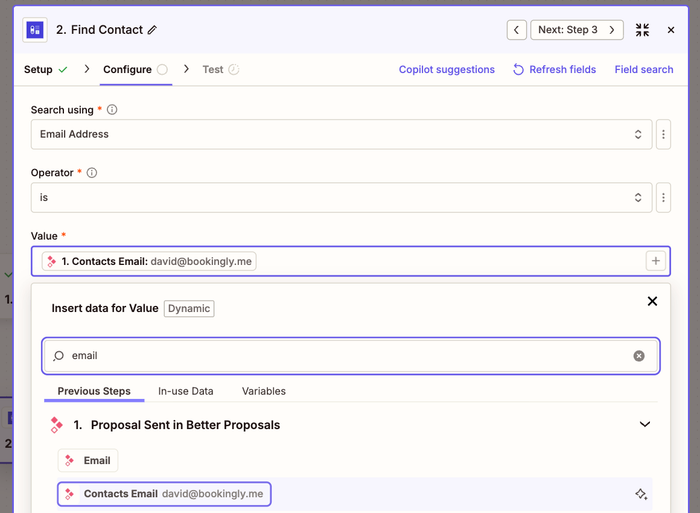
- On the Configure tab, type
/in the Value field and select the email address from Better Proposals. This is used to search Capsule Contacts by their unique email address.
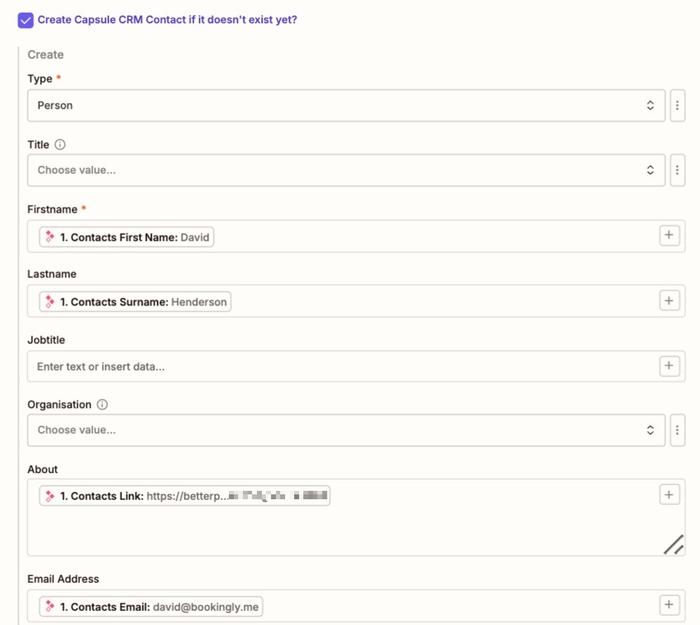
4. On the same Configure tab, make sure the box is checked to “Create Capsule CRM Contact if it doesn’t exist yet?”

5. Fill in the details for the Contact that will be created if it doesn’t exist in Capsule.
This step is important because here you’re mapping the relevant fields from Better Proposals to the correct Fields within Capsule. The Type and First Name are required fields, and any Custom Fields will need to be set up in Capsule prior to integrating with Better Proposals.
6. Once you’re happy with the configuration, click on the Continue button.
7. At this point, you will be asked to test your step. Use the Test Step button to complete the check. If the Contact isn’t already in Capsule, this will create it for you. Below you will find a screenshot of how this would reflect a new Contact added to Capsule:

Zap Action: Add History
- Finally, we can add update the Contact's history. If you're not redirected automatically, click on the tile for Add Note to Entity.
- In the Account field, choose your Capsule account and select Continue.
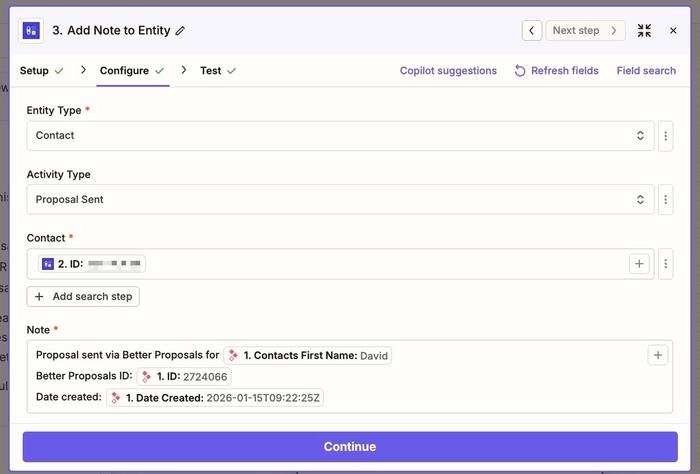
- On the Configure tab, map the required Capsule fields. You will need:
- Entity Type: Contact should already be pre-selected for you here.
- Activity Type: Select the correct activity type. For this example, we’ve created a Custom Activity Type called Proposal Sent.
- Contact: Switch to the Custom tab using the 3 dots icon, then click Find contact in Capsule CRM step. From the dropdown, select the ID field.
- Note: Define the format in which you’d like the information to be pulled into the activity. Type/to map fields from Better Proposals.
All other fields are optional. Once happy with your selection, choose Continue.
4. At this point, you will be asked to test your step. Use the Test Step button to complete the check. Below you will find a screenshot of how this would reflect a new activity added to Capsule:
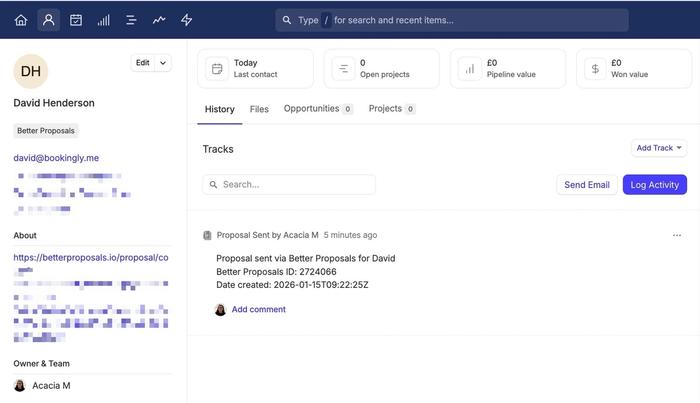
8. If it all looks correct, click the Publish button to save your changes and push your Zap live.
This activates the integration, and from this point onward, the activity will be added to the Capsule Contact's history each time a Proposal is sent in Better Proposals. The Contact will automatically be added to Capsule (if they don’t already exist).
How to add a Capsule Opportunity from a sent Proposal in Better Proposals
This zap will help you automate the process of adding a new Opportunity to Capsule each time a Proposal is sent in Better Proposals. If the Contact doesn't already exist in Capsule, it will be created for you.
We have created a template to make the process as simple as possible. Click on the Zapier link below to load the Better Proposals Template:
You will be prompted to log in to your Zapier account. If you don't have an account, you can sign up here - Zapier.
Zap Trigger: Proposal Sent
- The first step is to define the Trigger, which is when there is a sent Proposal in Better Proposals. You should be directed to this step in the template - but if not, click on the tile for Proposal Sent.
- In the Account field on the same page, choose Sign In to link Zapier to Better Proposals. Follow the steps on screen to add the Zapier integration and copy the API key from GoPropsal.
Once generated, copy and paste the API key into the Zapier field and choose Yes, Continue to Better Proposals to complete the connection.
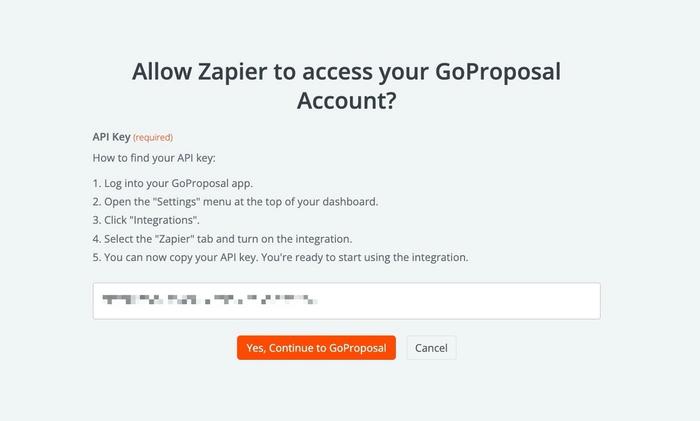
3. When directed back to Zapier, choose Continue
4. At this point, you will be asked to Test your Trigger. Use the Test Trigger button to complete the check - here you will be able to see examples of your created Proposals in Better Proposals.
Select one of the examples, then choose Continue with selected record.
Zap Action: Find Capsule Contact
- Now we can check if the Contact already exists in Capsule, and if not, then create it. If you're not redirected automatically, click on the tile for Find Contact.
- In the Account field, choose your Capsule account. If you’ve set up a Zap for Capsule earlier, you’ll be shown an existing account. Or follow the instructions to link your account and click Continue.
- On the Configure tab, type
/in the Value field and select the email address from Better Proposals. This is used to search Capsule Contacts by their unique email address.
4. On the same Configure tab, make sure the box is checked to “Create Capsule CRM Contact if it doesn’t exist yet?”
5. Fill in the details for the Contact that will be created if it doesn’t exist in Capsule.
This step is important because here you’re mapping the relevant fields from Better Proposals to the correct Fields within Capsule. The Type and First Name are required fields, and any Custom Fields will need to be set up in Capsule prior to integrating with Better Proposals.
6. Once you’re happy with the configuration, click on the Continue button.
7. At this point, you will be asked to test your step. Use the Test Step button to complete the check. If the Contact isn’t already in Capsule, this will create it for you. Below you will find a screenshot of how this would reflect a new Contact added to Capsule:
Zap Action: Add Opportunity
- Finally, we can add the Opportunity for the Contact. If you're not redirected automatically, click on the tile for Create Opportunity.
- In the Account field, choose your Capsule account and select Continue.
- On the Configure tab, map the required Capsule fields. You will need:
- Contact: Switch to the Custom tab using the 3 dots icon, then click Find contact in Capsule CRM step. From the dropdown, select the ID field.
- Pipeline: The Pipeline the Opportunity will be added to
- Milestone: The relevant Milestone from the Pipeline chosen above
- Name: The name of the Capsule Opportunity
All other fields are optional, shown in the example below. Once happy with your selection, choose Continue.
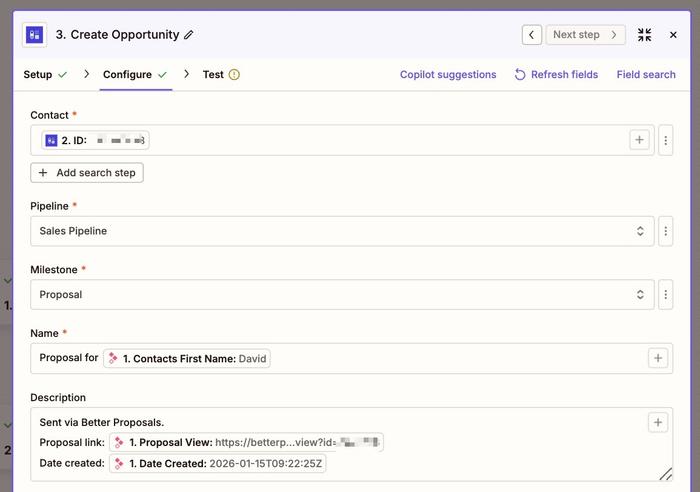
4. At this point, you will be asked to test your step. Use the Test Step button to complete the check. Below you will find a screenshot of how this would reflect a new Opportunity added to Capsule:

5. If it all looks correct, click the Publish button to save your changes and push your Zap live.
This activates the integration, and from this point onward, a new Opportunity will be added to Capsule each time a Proposal is sent in Better Proposals. The linked Contact will automatically be added to Capsule (if they don’t already exist).
Benefits of this Integration
- Time Efficiency: Automates the Proposal details (and the Contact they are for) being stored in Capsule, saving time on manual data entry.
- Accuracy: Reduces the risk of data entry errors, ensuring that Proposal information is accurately captured and linked to.
- Productivity: Streamlines the process of updating Capsule, allowing you to focus on more critical tasks such as customer engagement and follow-up.
More ideas for this Zap
- Log when Proposals are created - use the New Proposal trigger
- Log when Proposals are opened - use the Proposal Opened trigger
- Log when Proposals are signed - use Proposal Signed trigger
- Log when Proposals are paid - use the Proposal Paid trigger