As well as storing emails using the Drop Box, you can also connect your mailbox and automatically store future emails against your Contacts in Capsule. Once Email Sync is enabled for a Contact, any emails you send or receive with them will be stored automatically, without needing to forward emails or use BCC.
Setting up Email Sync
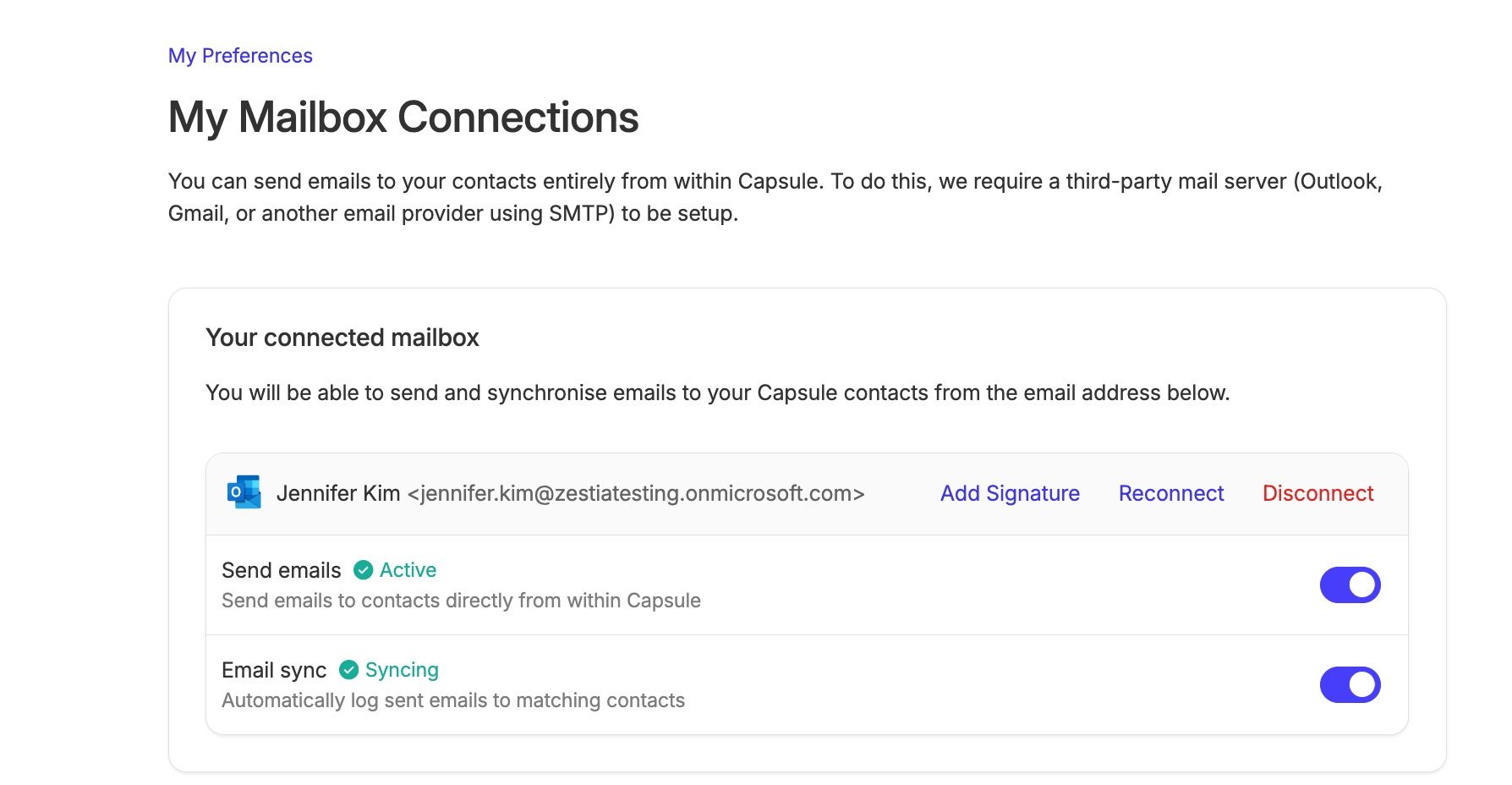
To use Email Sync, you'll first need to connect your mailbox to Capsule.
- Go to My Preferences.
- Connect your mailbox if you haven't already.
- Switch on the Email Sync toggle.
Your mailbox is now ready to sync emails.
Each Capsule user needs to connect their own mailbox and enable Email Sync in My Preferences. Emails are only synced from the mailbox connected to that user. This helps build a complete history of customer communication in Capsule.

Enable Email Sync for a Contact
You will only see Email Sync when viewing a Contact if you have connected your mailbox and enabled Email Sync in My Preferences.
To start automatically storing emails for a Contact:
- Open the Contact in Capsule
- In the Email Sync tile on the right-hand side of the Contact, turn on Automatically store emails for this contact on.
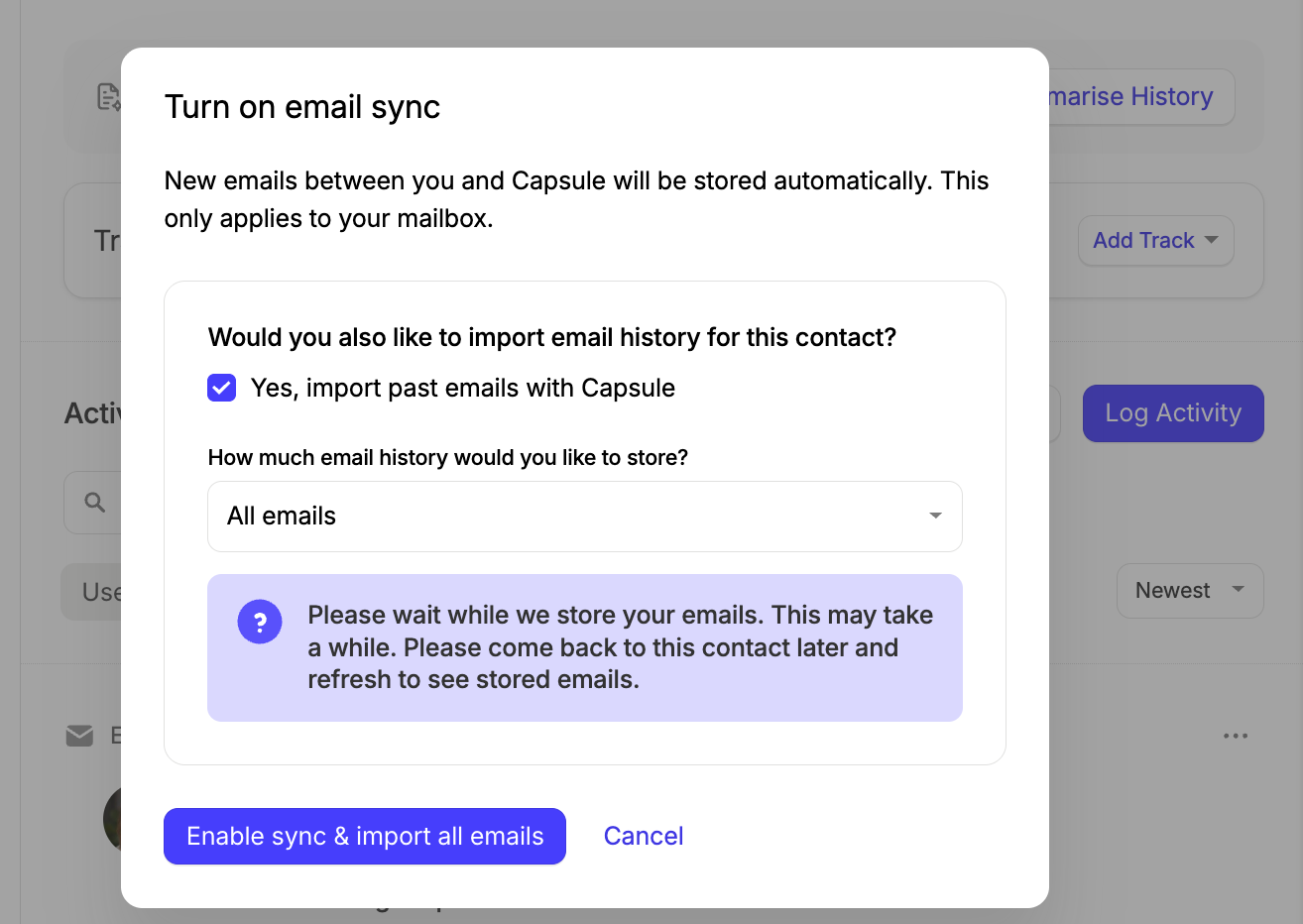
- When enabling Email Sync, you can also choose to import past emails between you and the Contact. Select Yes, import past emails with Capsule, then choose how much email history you’d like to store.
4. Click Enable sync & import emails.

Contacts with multiple email addresses
If the Contact has multiple email addresses, Email Sync is enabled for all email addresses by default. If you choose to import past emails, Capsule will also import email history for all of those enabled addresses.
If you only want to import past emails for specific email addresses, click Manage in the Email Sync tile before turning on Email Sync. From here, enable Email Sync for the address you'd like to import past emails for. You can return to Manage afterwards to enable any additional email addresses you'd like to sync for future emails.
From then on, any new emails you send or receive using an email address with Email Sync enabled will automatically be stored against the Contact in Capsule.
Send and Sync
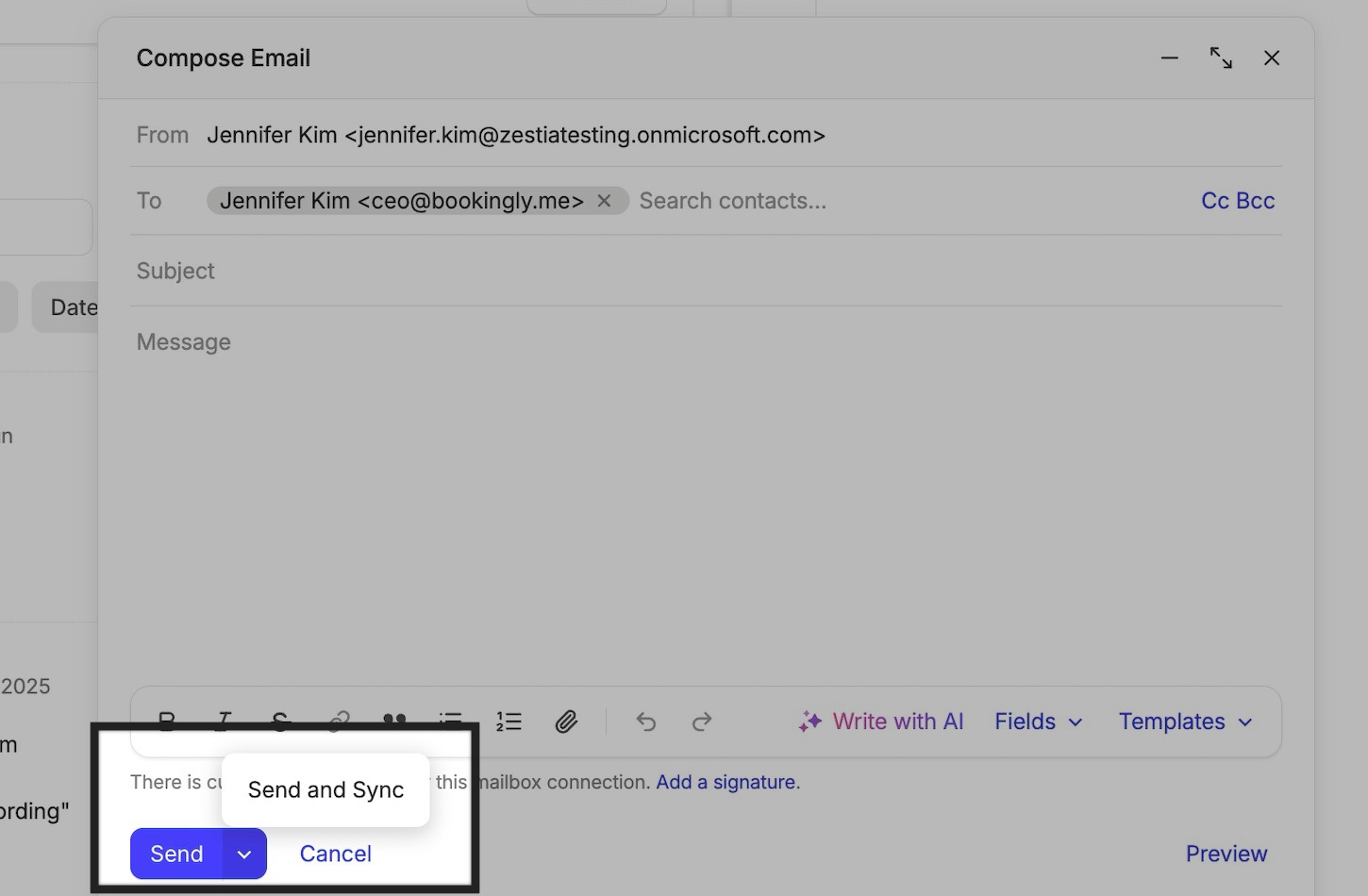
If Email Sync hasn’t yet been enabled for a Contact, you’ll also see a Send and Sync option when sending them an email from Capsule. Selecting this option sends the email and enables Email Sync for that Contact at the same time.

Turn off Email Sync
You can stop syncing emails for a Contact at any time. Simply go to the Contact and toggle off for Email Sync.
Any emails that have already been stored will remain in Capsule. Turning off Email Sync only prevents future emails from being stored automatically.
Reply to stored emails
Once an email has been stored in Capsule, you can continue the conversation without leaving Capsule.
Simply click Reply or Reply all on the stored email. Your reply will be sent using your connected mailbox, just as it would if you replied from Gmail or Outlook and the conversation will continue to be stored against the Contact in Capsule.