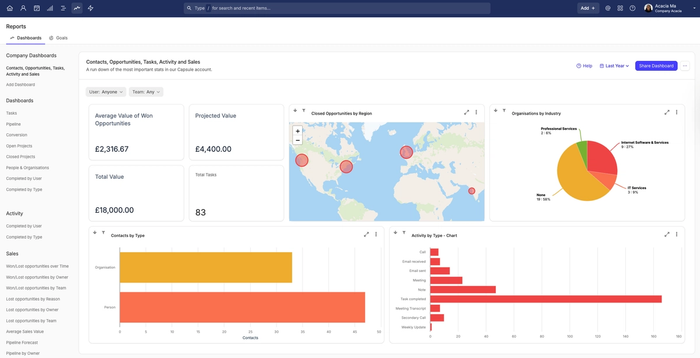
Capsule now offers the option to build your own Reports Dashboard, using our existing Activity, Tasks, Sales and Project Reports. It's a great way to have the most relevant information for your Company all in one place, without needing to leave the page.
Once created and shared, all Capsule users will be able to view the Dashboard - keeping it consistent across the board.
Why should I set up a Custom Dashboard?
- Quick and simple set-up
- Access to Capsule's extensive library, where you can pick the best-suited combination of Reports, e.g. Sales and Contacts
- Make changes to the Dashboard over time, so they stay relevant
How to add a Custom Dashboard
To add a Dashboard:
- Go to the Reports tab
- Select Dashboards
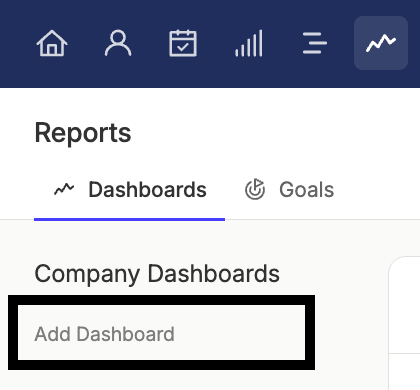
- Under the Company Dashboards heading in the left panel, select Add Dashboard
4. Give your Dashboard a Name and Description. The Dashboard Height field will be set to default, but you can choose 1.5x or 2x if you prefer.
5. Choose Save to add the template, where you can start designing your Dashboard.
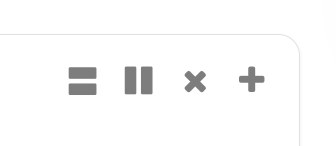
By default, the layout includes 4 report tiles. Each one has action buttons in the top right:
- To add a report - use the + icon. You can then choose any report from our extensive library to add to the tile.
- To remove a report - use the x icon
- To add more tiles - use the ॥ / = icons, to split the tile into 2 (vertically/horizontally), depending on the layout you want
- To change an existing report: click the 3 dots icon to the top left of the tile, then use the + icon
5. Once you're happy with your Dashboard set up (and are ready for other users to view it), choose the Share Dashboard button. Read more on what this means here.
Sharing a Custom Dashboard
The Share Dashboard button will make the dashboard content available to all users on your Capsule account. Other users can see the dashboard itself, but the content will not update until it’s shared.
This step is very important, as without sharing any changes can only be viewed by the person who is setting it up. It must be used after setting up a new dashboard and making any layout/report changes.

How to edit a Custom Dashboard
One great benefit of this feature is the option to edit your Dashboard in Capsule across time, to make sure it's always in line with your Company's needs. The sections below will explain what details can be edited and how to do it.
Editing the Dashboard Reports
To make changes to your Dashboard:
- Go to the Reports tab
- Select Dashboards
- Under the Company Dashboards heading in the left panel, click on the name of the Dashboard you want to edit the name of
- Now you can make the changes you need:
- To add a report: use the + icon
- To remove a report: use the x icon
- To add more tiles: use the ॥ / = icons, to split the tile into 2 (vertically/horizontally), depending on the layout you want
- To change an existing report: click the 3 dots icon to the top left of the tile, then use the + icon - To make the changes live for all users, use the Share Dashboard button.
Undo Changes
If you make any mistakes whilst editing the layout, there is the option to return to the last shared version of the Dashboard.
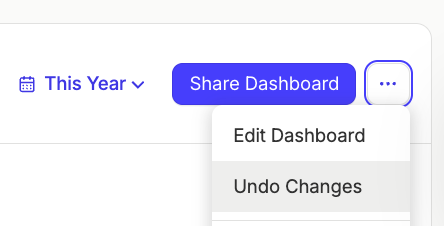
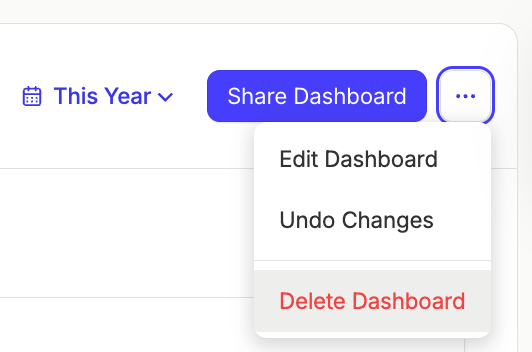
Whilst viewing the individual Dashboard, select the More Actions menu in the top right > Undo Changes.
Editing the Name, Description and Dashboard Height
- Go to the Reports tab
- Select Dashboards
- Under the Company Dashboards heading in the left panel, click on the name of the Dashboard you want to edit
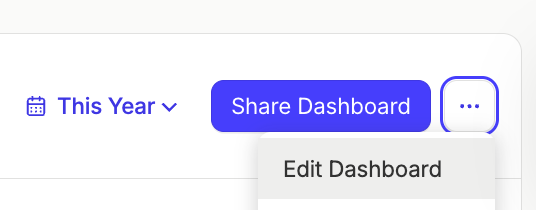
- In the top right, select the More Actions menu > Edit Dashboard
- Make your changes > Save
How to delete a Custom Dashboard
To delete a Dashboard:
- Go to the Reports tab
- Select Dashboards
- Under the Company Dashboards heading in the left panel, click on the name of the Dashboard you want to delete
- In the top right, select the More Actions menu > Delete Dashboard
It's also important to know that if you delete a Capsule User that has created a Dashboard, this will delete their Dashboard too.
What are the quotas for Custom Dashboards?
There is a limit to how many Custom Dashboards you can set up, depending on your Capsule plan:
| Plan | Number of Custom Dashboards |
|---|---|
Growth | 5 |
Advanced | 10 |
Ultimate | 20 |