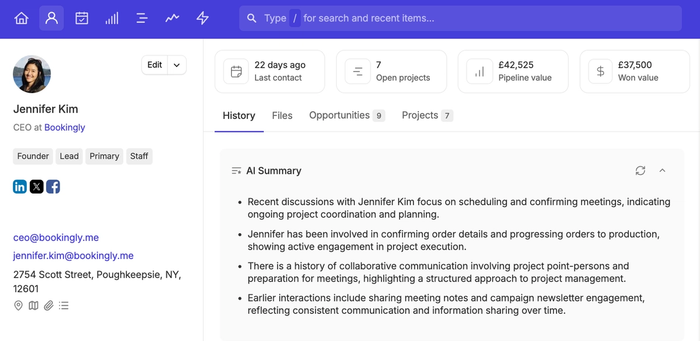
Capsule now lets you view AI-generated summaries of your Contact, Opportunity and Project history. These summaries give you a quick, bulleted overview of your 50 most recent activities - including emails, calls, and notes you’ve logged. It’s perfect for quickly preparing for a sales call or catching up on key accounts.
How to generate an AI Summary
To generate an AI Summary:
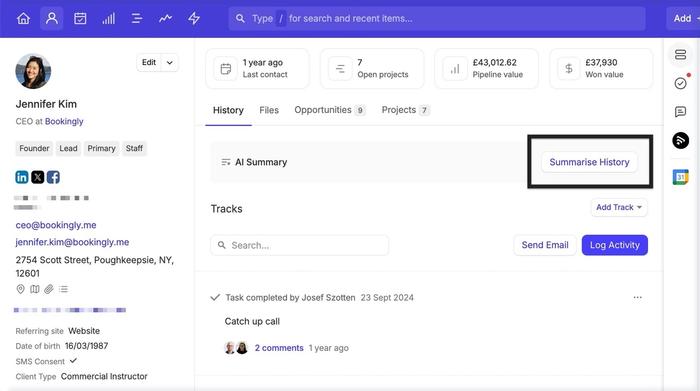
- Click on the Contact, Opportunity or Project you want to view a summary of
- Choose the Summarise History button from the middle panel
Capsule will then generate the summary for your record.
How to refresh an AI Summary
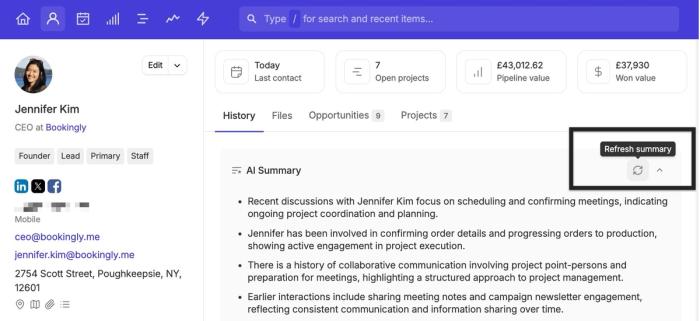
If you log more activity to a record at a later date, there will be an option to refresh your AI Summary to include the latest details.
How is my Capsule data used for AI Summaries?
To generate AI Summaries, Capsule will securely share your activity data with OpenAI, our trusted sub-processor. You can find more details on it below:
| Sub-processor | Purpose | Data | Transfer Mechanism | Supplemental Measures | Contact Details/ Location |
|---|---|---|---|---|---|
Create contact, opportunity and project summaries | Customer entered data (account details, activities), Content of communications between a customer and user | SCCs | Data is encrypted at rest and in transit DPA | Legalprivacy@openai.com 3180 18th St., San Francisco, CA 94110, USA |
What are the quotas for AI Summaries?
Currently, each Capsule account has a total of 20 AI Summaries per user, for Contacts, Opportunities and Projects combined. Find out how to generate an AI Summary in this section.
Administrators can also track the usage of AI Summaries in Account Settings > Account and Plan > Usage.
How to disable AI Summaries
Administrators can choose to disable the AI Summaries feature if needed. To do this:
- In Capsule, go to Account Settings
- Click on Capsule AI
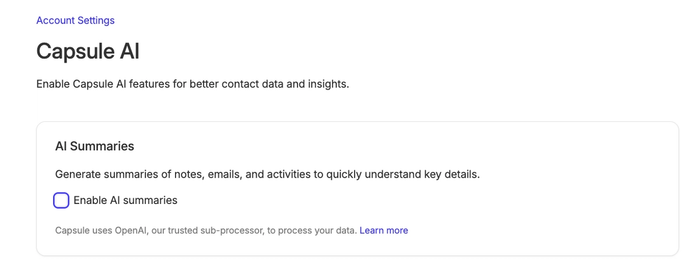
- Under the AI Summaries section, untick the check box for Enable AI Summaries
- Save your changes