Creating an API token in Zendesk
A new API token needs to be created in Zendesk for Capsule. To do this log in to your Zendesk account:
- In Admin Centre, click Apps and integrations in the sidebar, then select APIs > API Configuration.
- Turn on Token access if it's not already turned on.
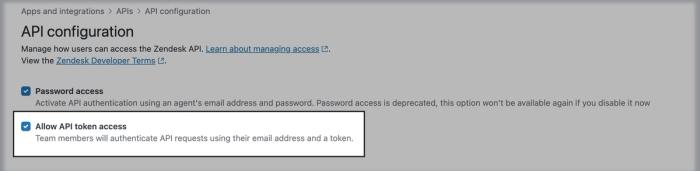
3. In the sidebar, click API Tokens > Add API token.
4. Give the token a name e.g. Capsule CRM and then click Save to generate the token
5. Click Copy to copy the API token.
Reauthenticating the connection in Capsule
To reauthenticate the connection between Capsule and Zendesk, you will first need to disable the integration and then enable it again using the new credentials.
- In Capsule, click on your name in the top right corner > Integrations
- Click Manage next to Zendesk
- Click Disable integration > then confirm by clicking Disable
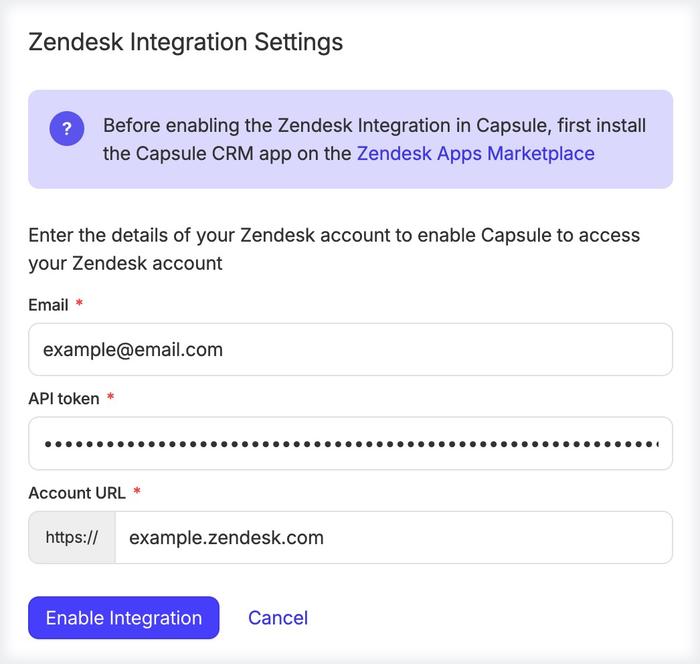
4. Click Enable Integration
5. Enter the email address for your user in Zendesk, the API token you have created in Zendesk for Capsule and your site URL
6. Click Enable Integration to complete the setup
Need Help?
Simply get in touch by emailing support@capsulecrm.com and one of the team will be happy to help.